

Settings
The Settings page allows you to configure the global behavior of WHMPress. All configuration options available on this page apply site-wide unless overridden by shortcode-specific attributes. From here, you can manage your WHMCS connection, pricing display rules, frontend assets, domain search behavior, AI-powered domain suggestions, custom search messages, WHOIS server mappings, and shortcode defaults.
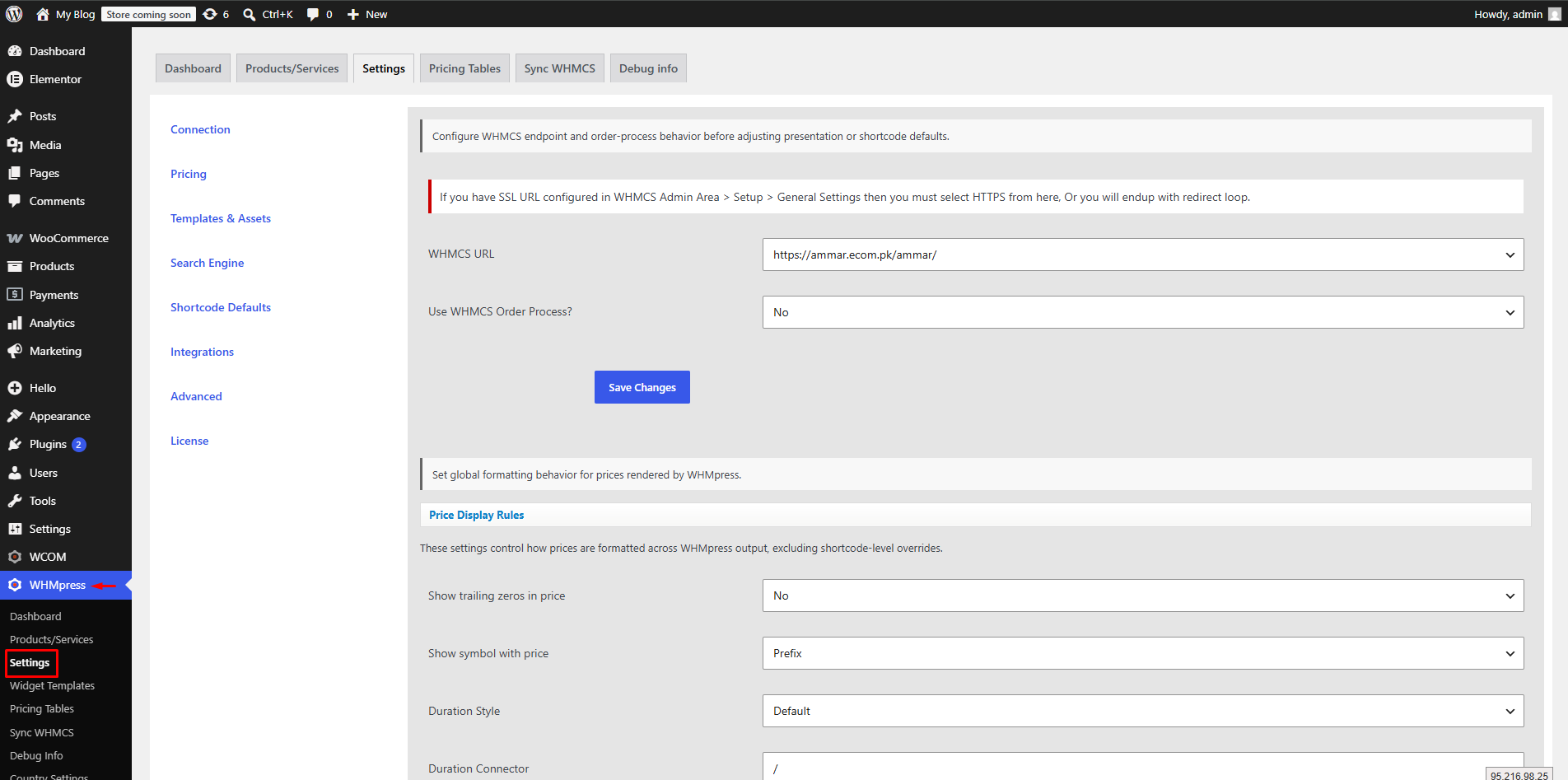
Connection
The Connection section defines how WHMPress communicates with your WHMCS installation.
WHMCS URL
Enter the full URL of your WHMCS installation.
Example:
https://yourdomain.com/whmcs/
This URL is used throughout the plugin to generate product, cart, checkout, client area, and domain search links.
Note: If SSL is enabled in your WHMCS installation (Setup → General Settings), make sure to use the HTTPS version of the URL. Using HTTP may result in redirect loops.
Use WHMCS Order Process
Enable this option if you want all Order Now buttons to redirect visitors directly to the native WHMCS order process.
Options
- Yes
- No
Pricing
The Pricing section controls how product pricing is displayed across all WHMPress elements.
Show Trailing Zeros in Price
Choose whether prices should always display decimal places.
Examples
$10.00or$10
Show Symbol With Price
Choose where the currency symbol should appear.
Available options include:
- Prefix
- Suffix
Example
$9.99or9.99$
Duration Style
Controls how billing cycles are displayed.
Examples include:
- Monthly
- Per Month
- Every Month
- Default
Duration Connector
Specify the separator displayed between the price and billing cycle.
Example:
$5 / Month
Decimals
Specify the number of decimal places displayed for all product prices.
String to Show if Price Not Configured
Specify the text displayed when no pricing information exists.
Default:
N/A
String to Show if Price is Zero
Specify the text displayed for products with a zero price.
Default:
Free
Override String if Billing Cycle is “One Time”
Replace the default One Time billing text with your own custom label.
Calculate Configurable Options
Enable this option if configurable option pricing should be included when displaying product prices.
Include Setup Price
Choose whether setup fees should be included in displayed pricing.
Calculate Tax
Enable tax calculation for displayed prices.
Templates & Assets
This section controls the frontend template and additional styling options.
Template to Use
Select the default WHMPress template used across the website.
Changing the template affects all WHMPress shortcodes and widgets.
Custom CSS Codes
Add custom CSS to modify the appearance of WHMPress elements without editing plugin files.
This can be used to customize:
- Colors
- Typography
- Buttons
- Cards
- Tables
- Layout spacing
Optimization
These settings allow you to optimize asset loading and prevent duplicate frontend libraries.
Include Font Awesome
Loads the Font Awesome icon library.
Disable this option if your WordPress theme already includes Font Awesome.
Include DataTables
Loads the DataTables JavaScript library.
Required for domain matrix tables and other interactive tables.
Include Quick Search in Domain Matrix
Enables live search functionality within Domain Matrix shortcodes.
Include Slick Slider
Loads the Slick Slider library used by pricing tables and sliders.
Disable this option if your theme already loads Slick Slider.
Search Engine
Configure how domain searches behave throughout WHMPress.
The Search Engine section contains four configuration tabs.
Search Options
Enable Large Search Box
Displays a larger search input for improved user experience.
Use WHMCS API for Domain Search
Enable this option to perform domain availability checks using the WHMCS API instead of WHOIS lookups.
Number of Domains to Show in “Load More”
Specify how many additional domain results are displayed each time visitors click Load More.
AI Search Options
WHMPress supports AI-powered domain name suggestions using Google Gemini.
Use Gemini API Key
Enter your Gemini API key to enable AI-generated domain suggestions.
Selected TLDs
Choose which domain extensions should be included when generating AI suggestions.
Example:
- .com
- .net
- .org
- .biz
- .info
- .co
Custom Messages
Customize every message displayed during domain searches.
Available messages include:
- Domain Available
- Domain Not Available
- Recommended Domains List
- Ongoing Domain Available
- Ongoing Domain Not Available
- Register Button Text
- Load More Button Text
Additional HTML can also be displayed:
- Before domain search
- After search results
This allows administrators to display promotional banners, notices, or custom content.
WHOIS Servers
Configure WHOIS server mappings for domain availability checks.
Each entry maps a domain extension to its corresponding WHOIS server.
Normally these values should only be modified by advanced users or when adding support for custom TLDs.
Shortcode Defaults
The Shortcode Defaults section allows you to define global default values for WHMPress shortcodes.
Whenever a shortcode parameter is omitted, WHMPress automatically uses the values configured in this section.
This helps maintain consistency across your website and reduces the need to specify common attributes repeatedly.
Saving Your Changes
Each configuration section includes its own Save Changes button.
After modifying any settings, click Save Changes to apply them immediately.
Administrator Capabilities
Using the Settings page, administrators can:
- Configure the WHMCS connection.
- Define global pricing rules.
- Customize billing cycle display.
- Configure tax and setup fee calculations.
- Select the frontend template.
- Add custom CSS.
- Optimize frontend asset loading.
- Configure domain search behavior.
- Enable AI-powered domain suggestions.
- Customize domain search messages.
- Manage WHOIS server mappings.
- Configure global shortcode defaults.
Once you’ve finished configuring the settings, click Save Changes in each section to apply your preferences. These settings will be used globally throughout your WHMPress installation unless overridden by shortcode-specific attributes.