

Verifying Steps:
- Activate the WHMpress Helper
- Log in to your WHMCS Admin Area.
- Navigate to: System Settings → Add-on Modules
- Locate WHMpress Helper in the list of available add-on modules.
- Click Activate to enable the WHMpress Helper module.
- Once the module has been activated, open the WHMpress Helper settings.
- Enter the license key(s) for your WHMpress plugin(s) and save the changes.
- Copy the Authorization Token from the WHMpress Helper module.
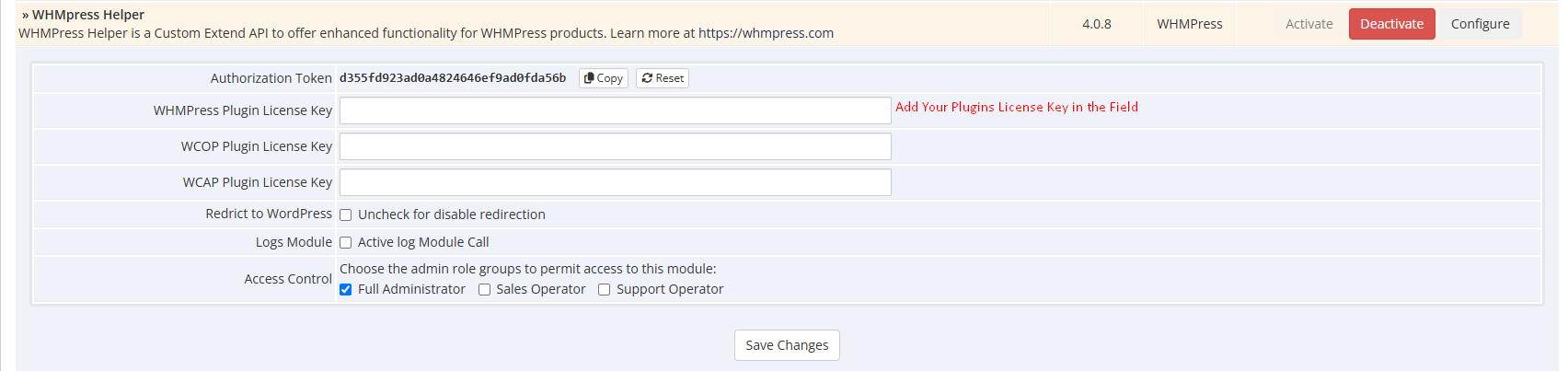
Once activated, the WHMpress Helper will allow all supported WHMpress plugins to communicate seamlessly with your WHMCS installation.
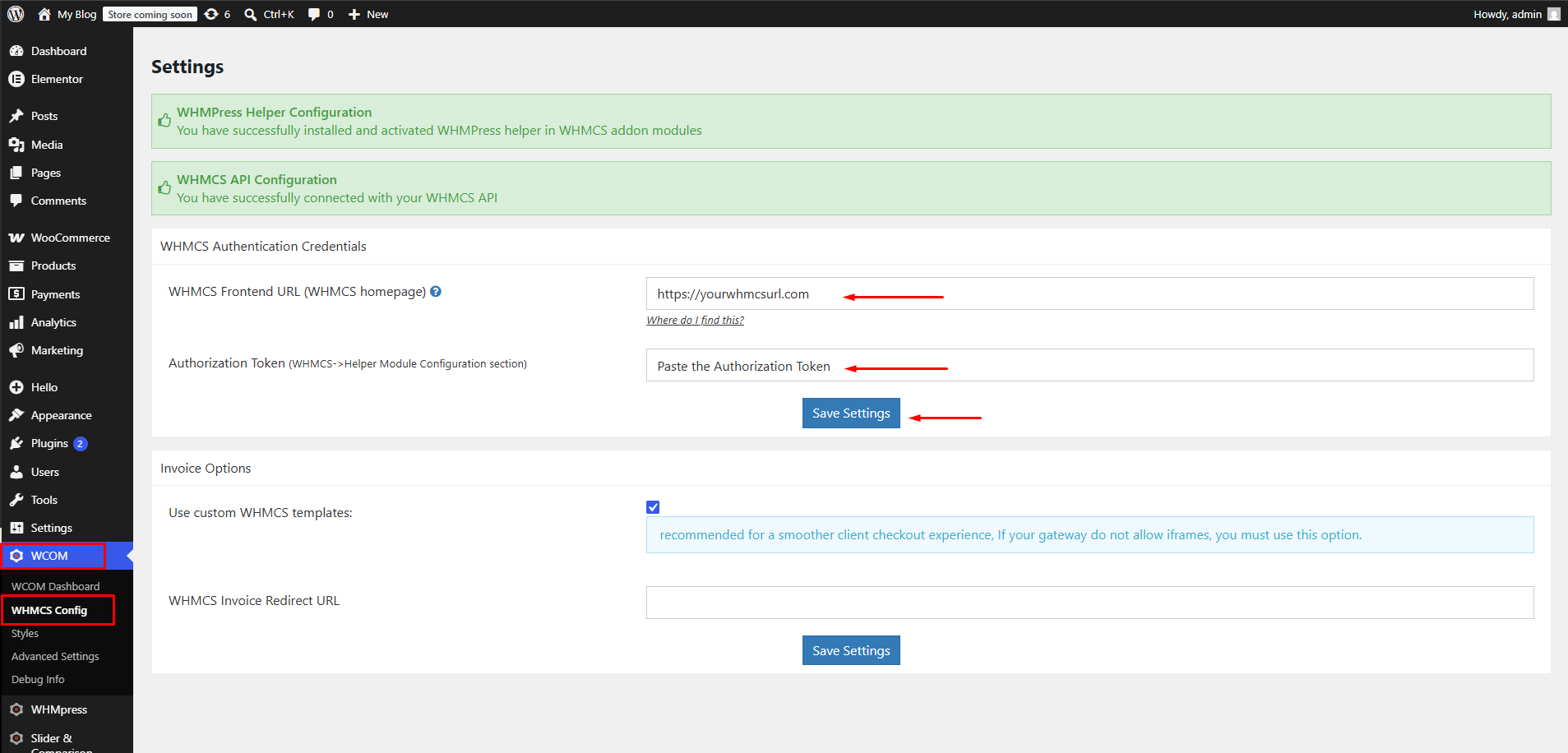
After uploading the WHMPress Helper plugin, log in to your WordPress Dashboard and navigate to WCOM → Config.
Under the WHMCS Authentication Credentials section:
- Enter your WHMCS URL in the designated field.
- Copy the Authorization Token from the WHMPress Helper module in your WHMCS installation and paste it into the corresponding field.
- Click Save Settings to apply the configuration.
Once these settings have been saved, the plugin will be successfully connected to your WHMCS installation.
Next, navigate to the Plugin Dashboard and click the Check License Status button.
Once you click this button, the plugin will verify your license. If the verification is successful, your plugin will be activated and ready to use.