

Download the Module:
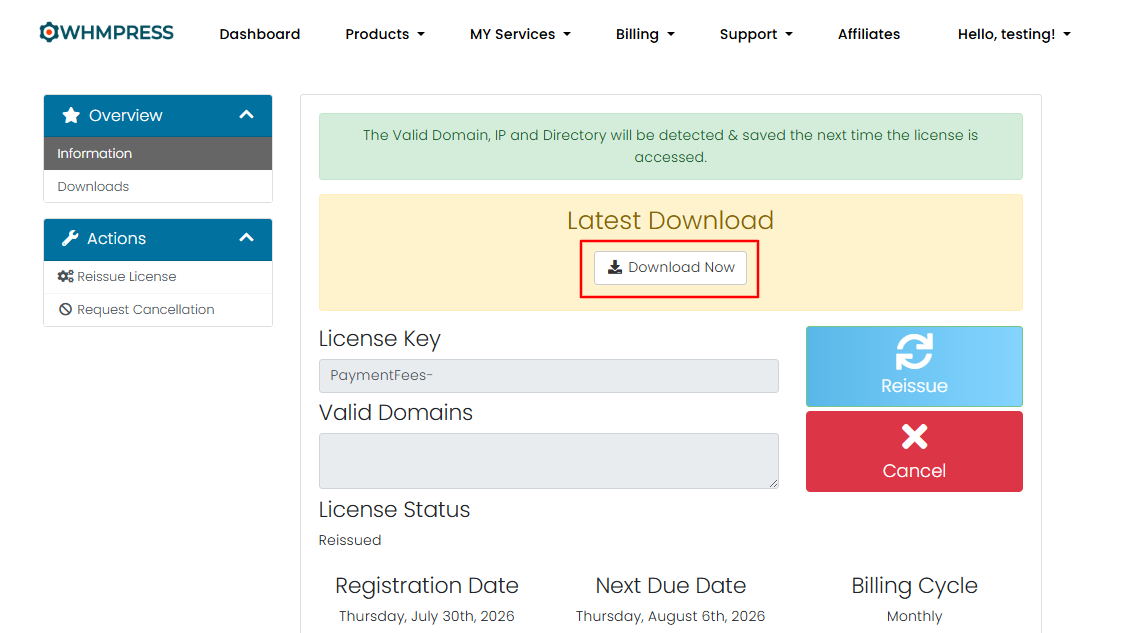
Log in to the WHMPress client area and download the module
Upload the Module:
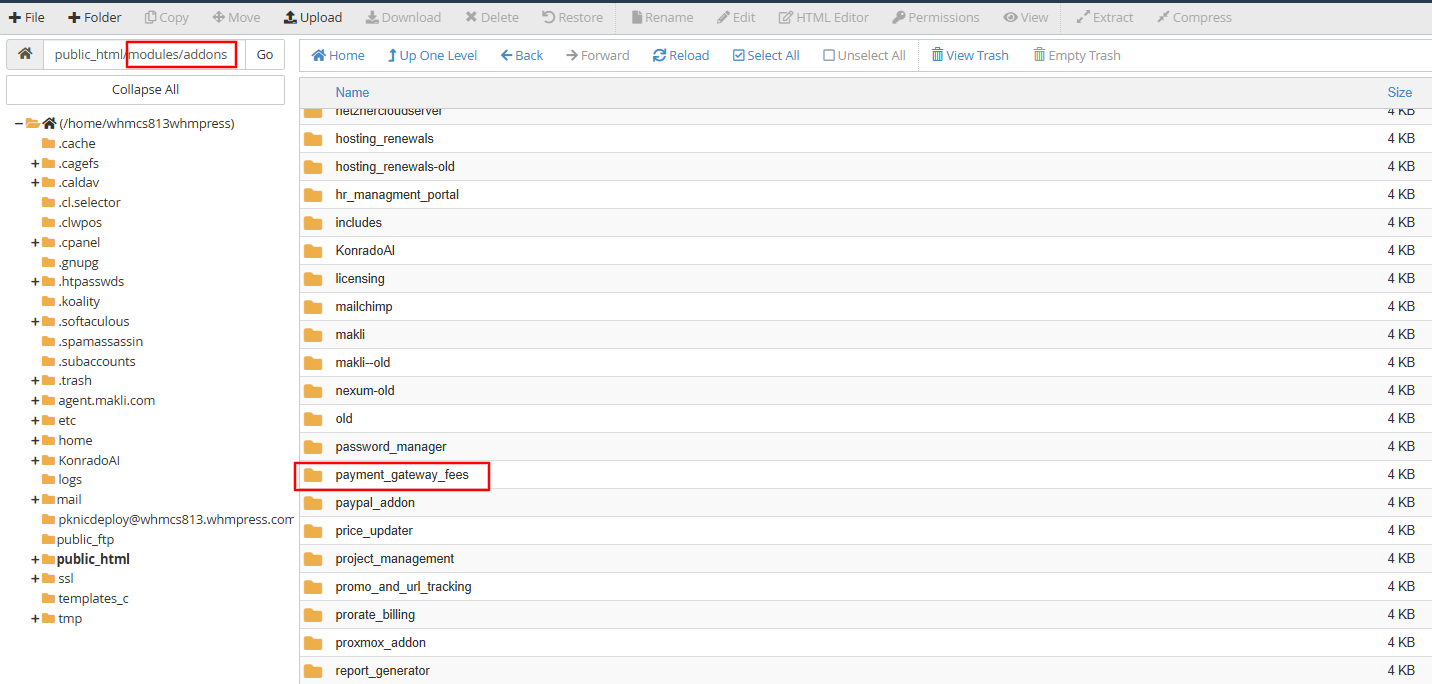
After extracting the downloaded zip, you will get a folder named payment_gateway_fees-PHP-81-to-84 (the name depends on your PHP version). Open the folder matching your PHP version, extract it, and upload the payment_gateway_fees folder to your_whmcs/modules/addons/.
Module Activation:
After uploading the module in Control Panel or FTP, log in to your WHMCS account.
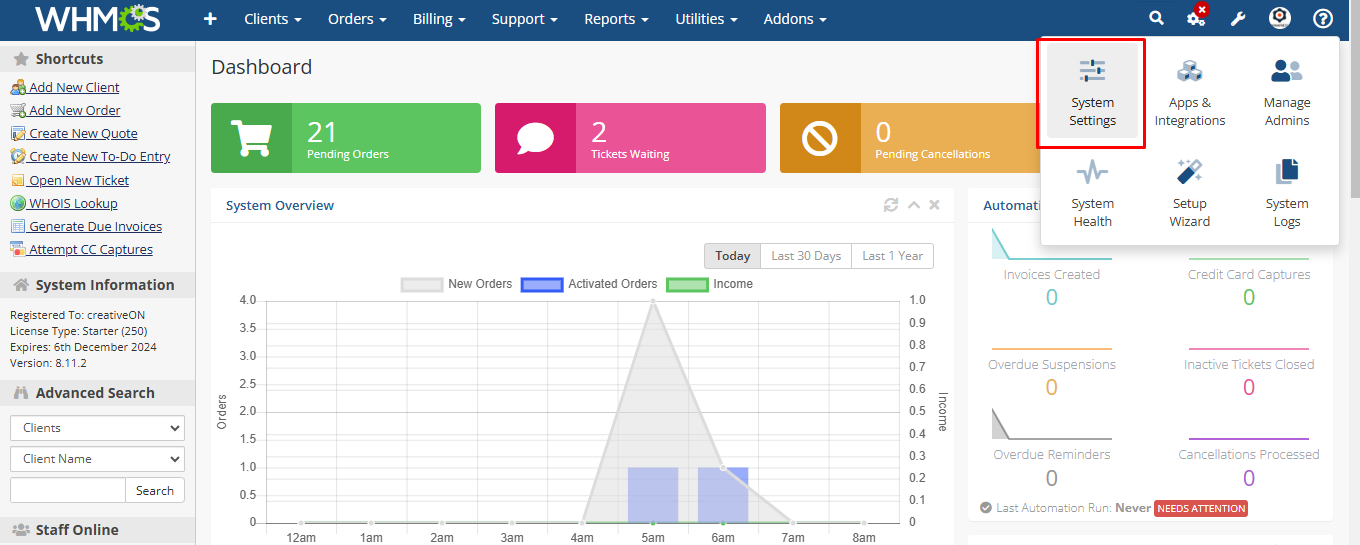
Then, Navigate to System Settings.
Navigate to Addons Module:
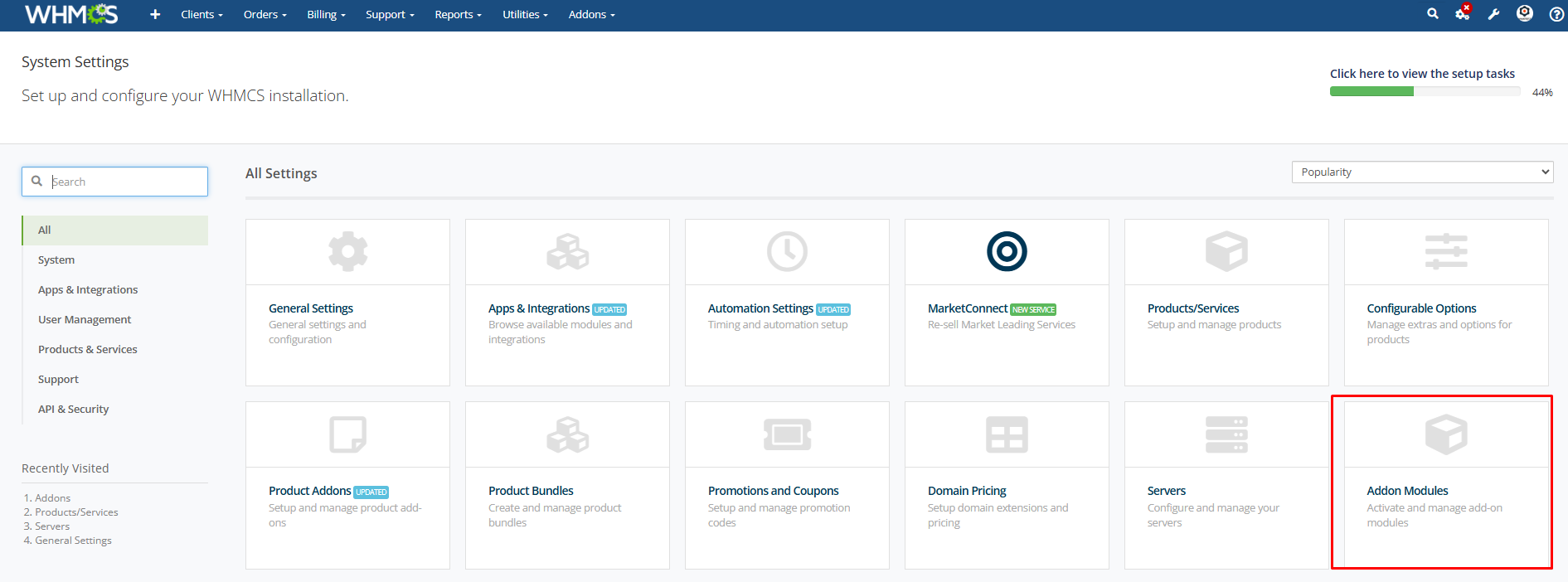
Activate the module: System Settings → Addon Modules → Payment Gateway Fees → Activate. WHMPress modules are activated before the license key is entered. The configuration screen that appears after activation is where licensing happens.
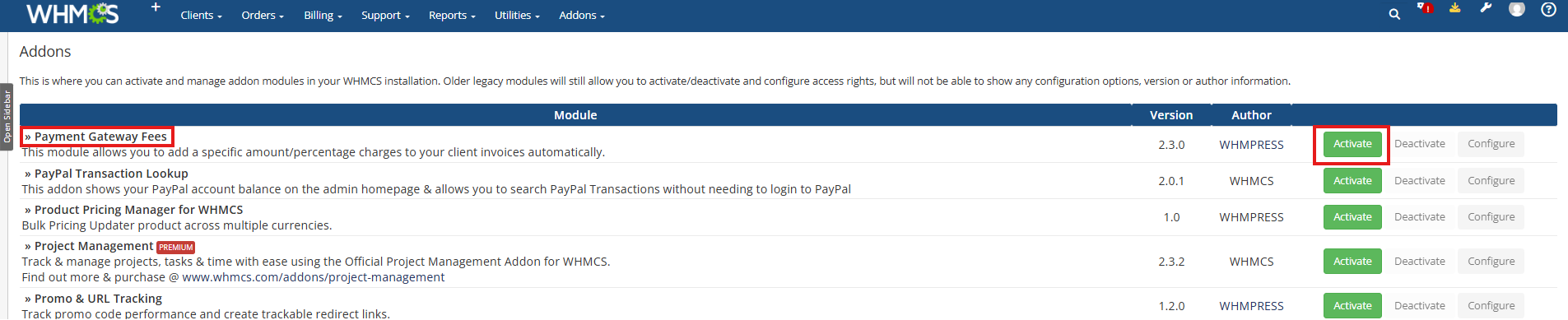
License setup:
Click Configure and enter your key into the License Key field. The key is validated against the WHMPress license server and the result is cached, so it is not re-checked on every page load. Your key is available in the WHMPress client area under My Products/Services → Payment Gateway Fees.
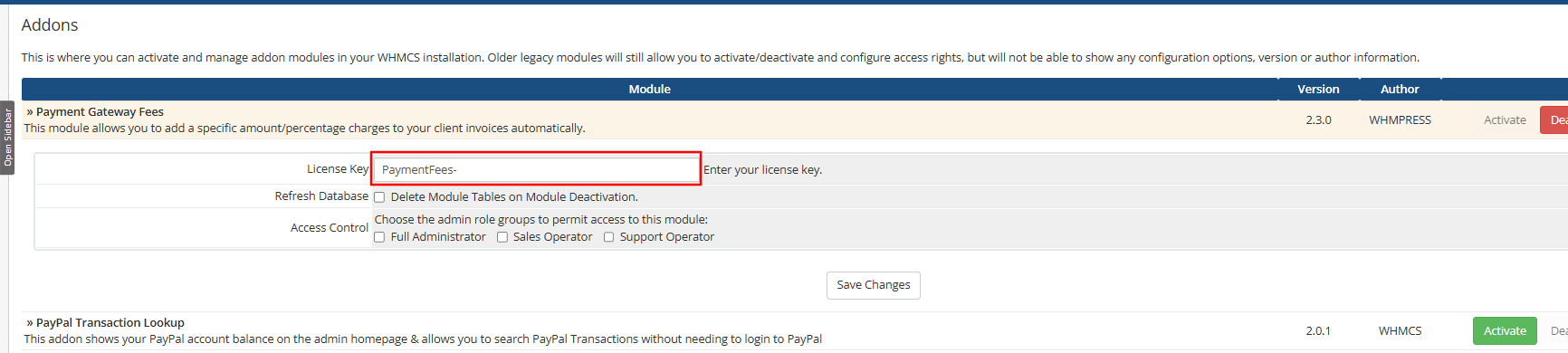
On the same configuration screen, you will also find:
⦁ License Key — your Payment Gateway Fees license key.
⦁ Refresh Database — when enabled, the module database tables are deleted on deactivation. Options: Tick / Untick (default: Untick)
⦁ Access Control — the admin role groups allowed to open the module.
Tick the admin roles that should have access and press Save Changes.
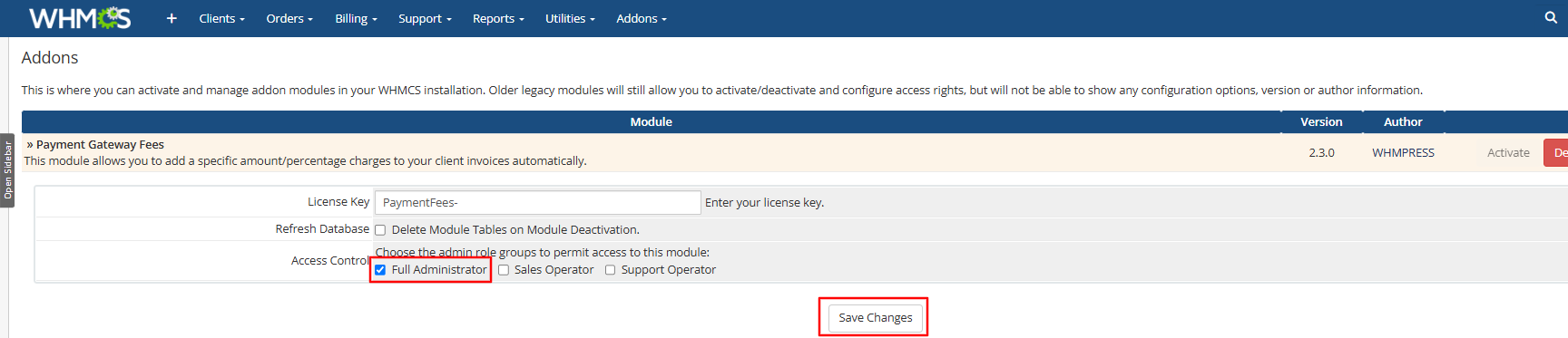
Your Module is Successfully Activated.
The module is now available at Addons → Payment Gateway Fees.
