WHMPRESS Payment Gateway Transaction Fees.
Payment Gateway Fees automatically add a transaction charge to your client invoices based on the payment gateway the client selects. The charge can be a percentage of the invoice amount, a fixed amount, or both together.
The fee is recalculated whenever the invoice changes when it is created, when its total is updated, when the client switches to a different payment gateway, and once a day through the WHMCS cron. Clients see the exact charge on the checkout page before they confirm the order, and the charge appears on the invoice as its own line item.
Addon Module Features:
Configure a separate fee for every payment gateway activated in WHMCS
Charge a percentage fee, a fixed amount fee, or both combined
Set a minimum invoice amount below which no fee is applied
Set a maximum fee threshold that caps the charge
Apply invoice tax on top of the gateway fee itself
Calculate the fee on the tax-inclusive or the net amount
Use the Stripe gross-up formula so the amount you receive matches the invoice total
Enable or disable the fee per gateway with a single toggle
Exclude specific clients so they are never charged a fee
Customise the fee description shown on the invoice using placeholders
Round the calculated fee to zero, one or two decimal places
Write every fee calculation to the WHMCS module log for troubleshooting
Automatic module updates through the WHMCS daily cron job
Client Area Features:
Live gateway charge preview on the checkout page as the client picks a gateway
Optional table listing the charges of every enabled gateway on the checkout page
Gateway fee shown as its own line item on the invoice
No gateway fee is charged when the invoice is fully paid with account credit
General Information:
Compatible with WHMCS: V8.x and later
PHP: 8.1 – 8.4
ionCube Loader: required, matching your PHP version
Supported themes: Six, Twenty-One, Lagom and custom themes
Supported order forms: Standard and Standard Cart work out of the box; other order forms need the one-line integration described in section 4.
Downloading the Module and Getting the License:
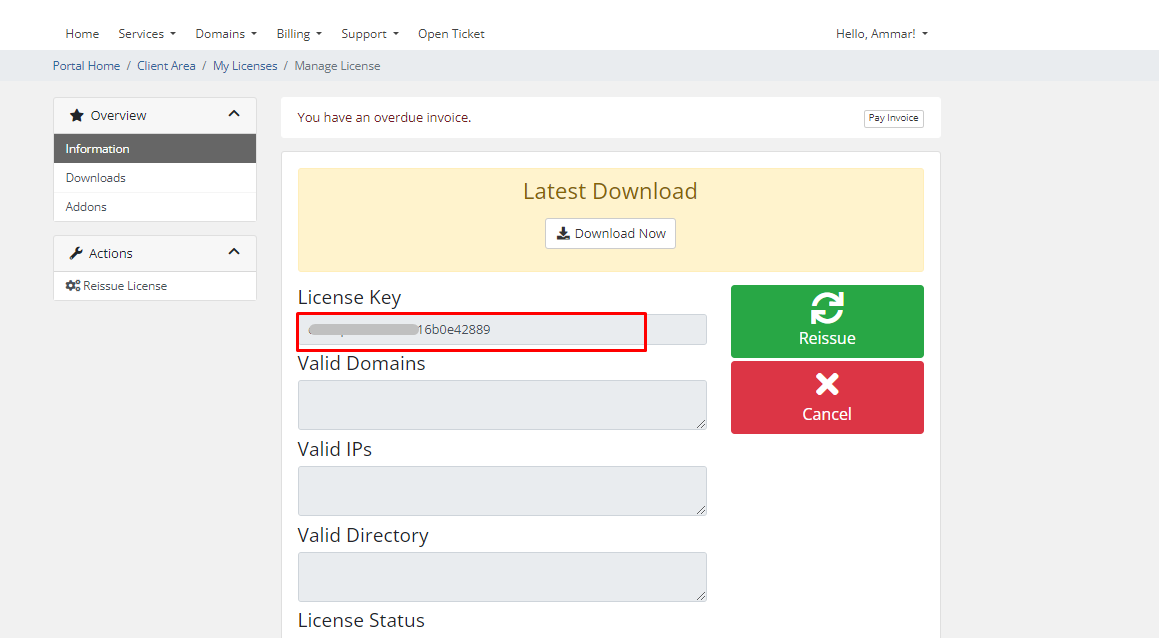
After purchasing the module, log in to your WHMPress client area and navigate to Service> Open your Module license service. Copy the license. And download the Module.