

The module interface is split into four tabs. Every change is saved instantly through AJAX; the page is never reloaded.
Dashboard:
The Dashboard lists every payment gateway that is activated in WHMCS together with the fee currently configured for it. The table shows the gateway name, the percentage fee, the fixed amount fee, the status toggle and the edit action.
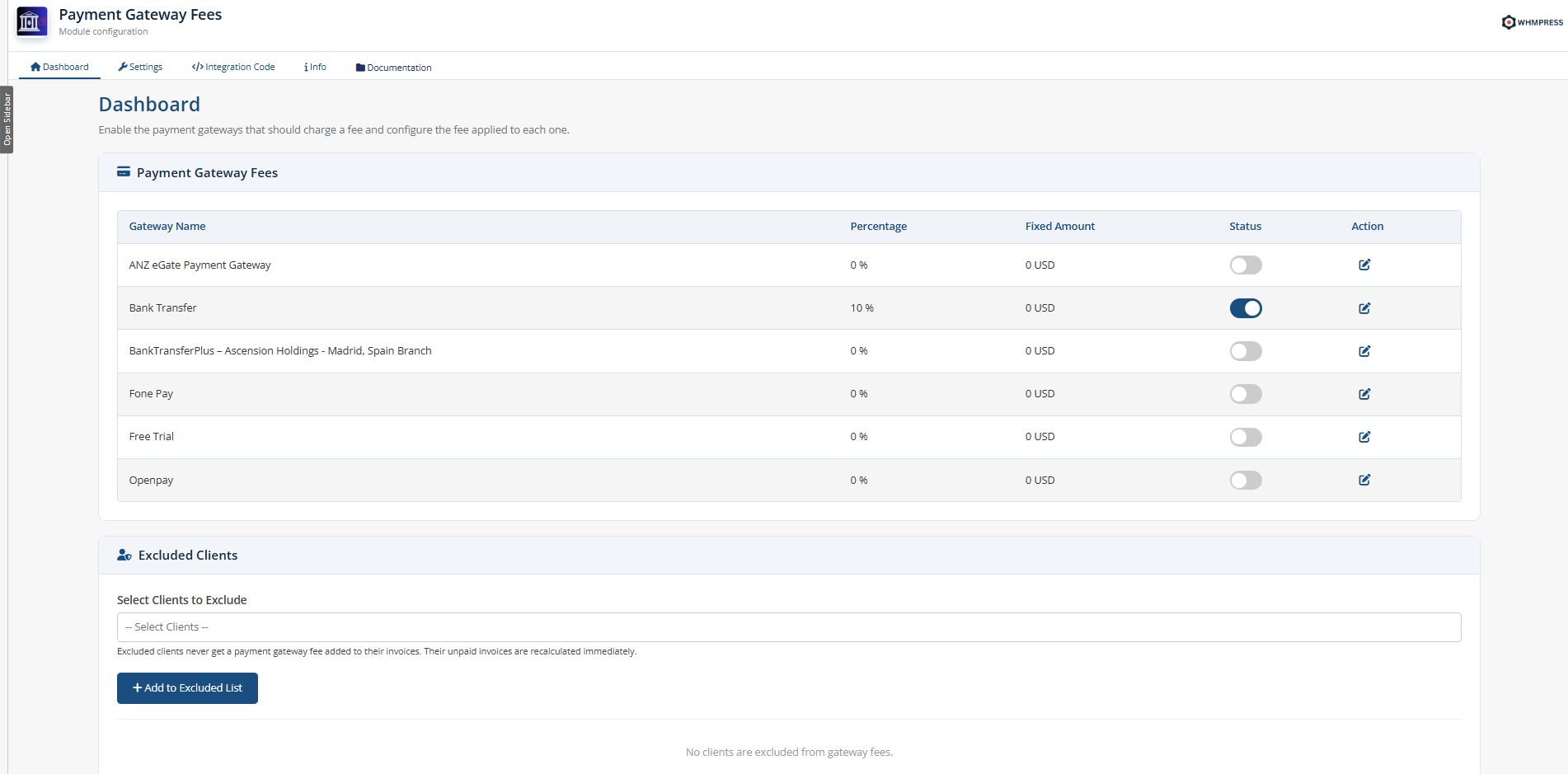
⦁ Status — enables or disables the gateway fee. Switching it immediately recalculates every unpaid and draft invoice that uses this gateway.
⦁ Edit icon — opens the fee configuration for that gateway.
Gateway Fee Settings:
Click the edit icon next to a gateway to open its settings.
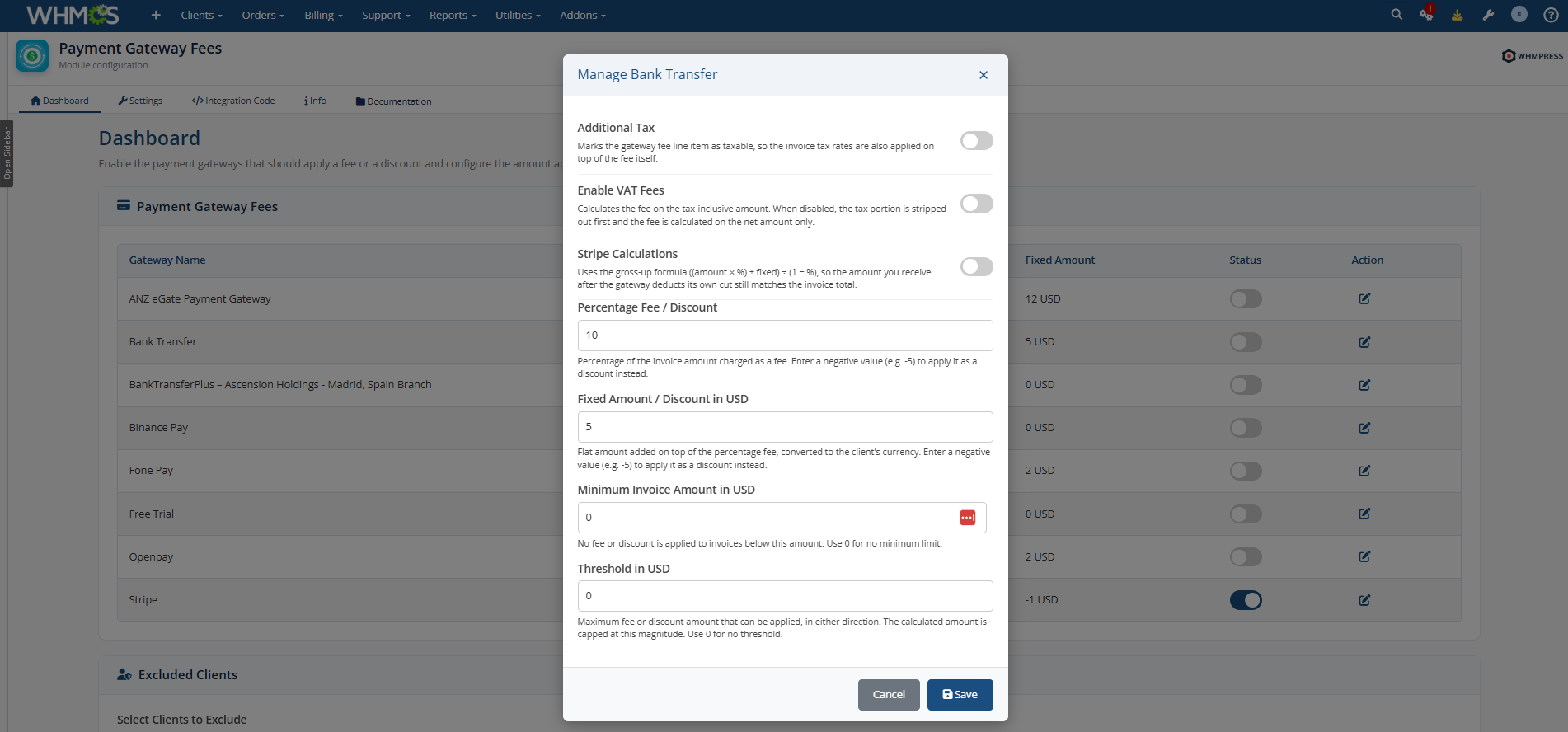
⦁ Additional Tax — marks the fee line item as taxable, so the invoice tax rates are applied on top of the fee itself.
⦁ Enable VAT Fees — calculates the fee on the tax-inclusive amount. When it is disabled the tax portion is removed first and the fee is calculated on the net amount only.
⦁ Stripe Calculations — uses the gross-up formula ((amount × %) + fixed) ÷ (1 − %), so the amount you receive after the gateway deducts its own cut still matches the invoice total.
⦁ Fees in Percentage — percentage of the invoice amount charged as a fee, for example 2.9.
⦁ Fixed Amount — flat amount added on top of the percentage fee. It is converted into the client’s currency automatically.
⦁ Minimum Invoice Amount — no fee is applied to invoices below this amount. Options: 0 = no minimum limit
⦁ Threshold — the calculated fee is capped at this value. Options: 0 = no threshold
Press Save to store the settings. All unpaid and draft invoices using that gateway are recalculated straight away.
Excluded Clients:
Clients on the excluded list are never charged a gateway fee, whichever gateway they choose.

1. Search and select one or more clients in the multi-select field.
2. Press Add to Excluded List.
3. To remove a client, press the cross icon next to their name and confirm the action.
Adding or removing a client immediately recalculates their unpaid and draft invoices.
Settings:
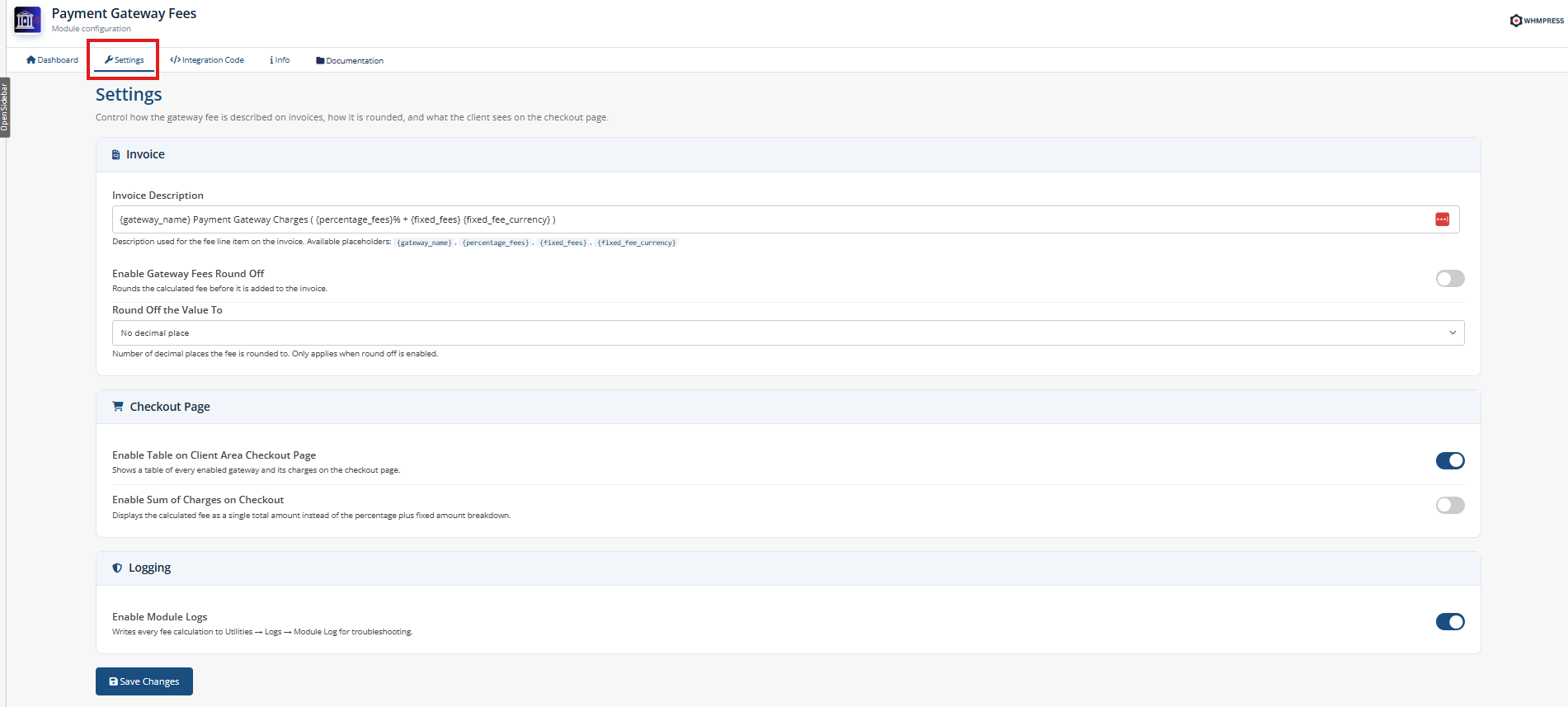
Global options that apply to every gateway.
Invoice:
⦁ Invoice Description — the description used for the fee line item on the invoice.
Available placeholders: {gateway_name}, {percentage_fees}, {fixed_fees}, {fixed_fee_currency}
⦁ Enable Gateway Fees Round Off — rounds the calculated fee before it is added to the invoice.
⦁ Round Off the Value To — number of decimal places used when round off is enabled. Options: No decimal place / One decimal place / Two decimal places
Checkout Page:
⦁ Enable Table on Client Area Checkout Page — shows a table of every enabled gateway and its charges on the checkout page.
⦁ Enable Sum of Charges on Checkout — displays the fee as a single total amount instead of the percentage plus fixed amount breakdown.
Logging:
Enable Module Logs — writes every fee calculation to Utilities → Logs → Module Log so you can verify exactly how a charge was produced.
Press Save Changes to apply the settings.
Integration Code:
Only needed for Lagom or any other custom order form template. The Six and Twenty-One themes and the Standard order forms are supported automatically and need no changes.
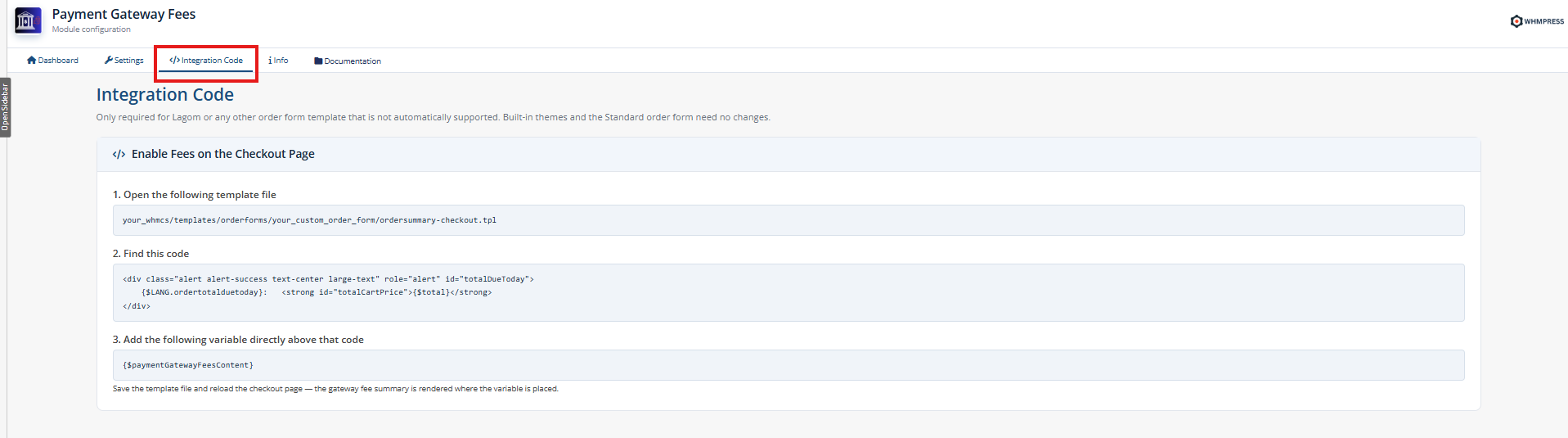
Open your_whmcs/templates/orderforms/your_custom_order_form/ordersummary-checkout.tpl
Find the block containing the order total:
<div class=”alert alert-success text-center large-text” role=”alert” id=”totalDueToday”>
{$LANG.ordertotalduetoday}: <strong id=”totalCartPrice”>{$total}</strong>
</div>
Add the following variable directly above that block, then save the file:
{$paymentGatewayFeesContent}
Info:
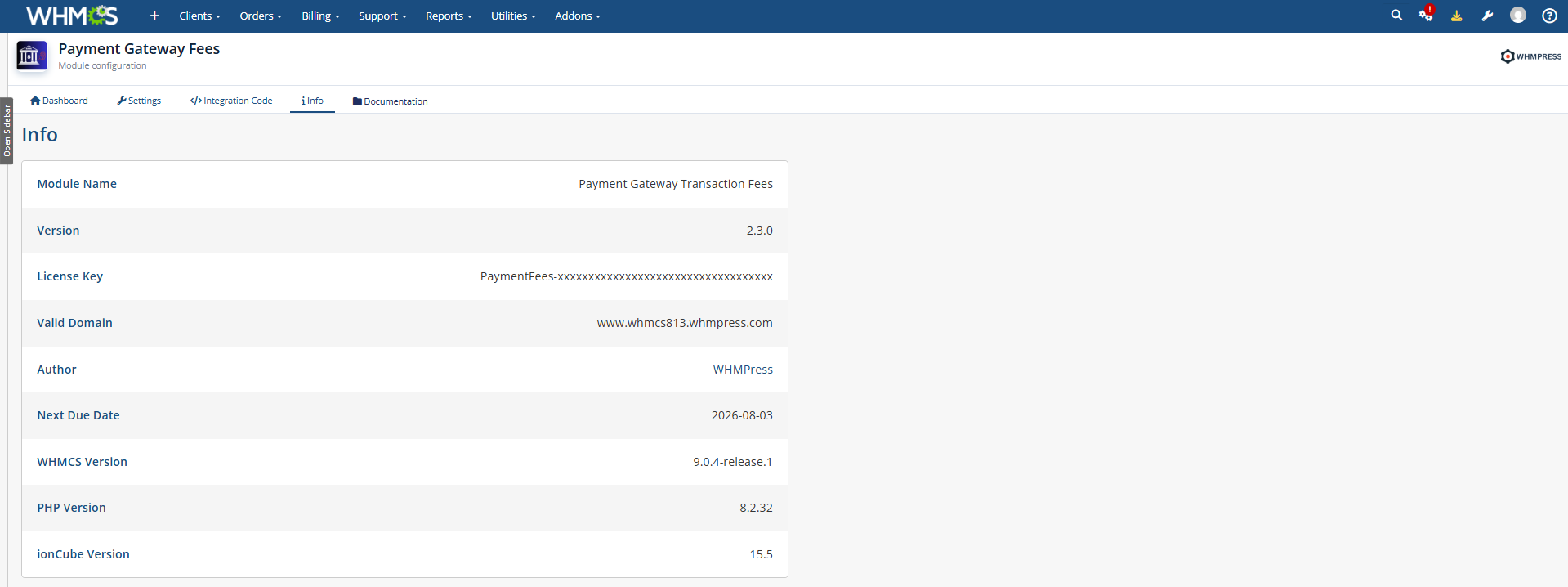
A read-only summary of your license: module name, installed version, license key, valid domain, author, and the next due date of the license.
Client Area:
The module appears on two client-facing pages: the checkout page and the invoice.
Checkout Page:
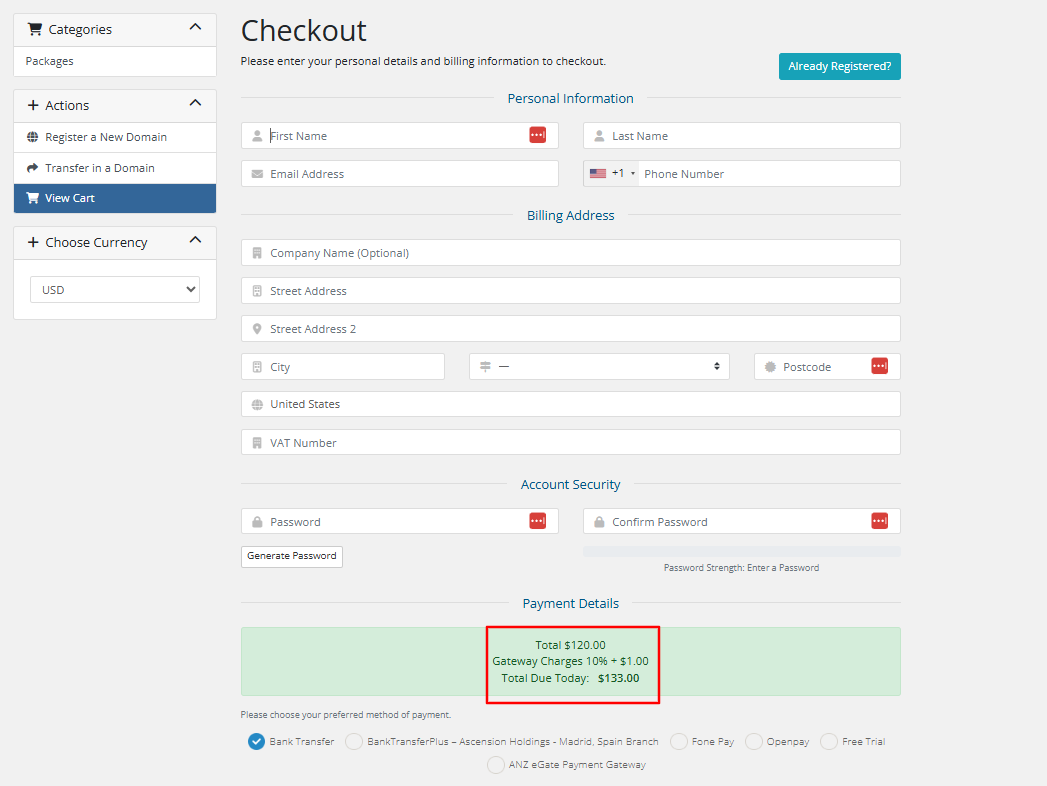
When the client selects a payment gateway, the gateway charge is calculated live and shown in the order summary, and the total due today is updated to include it. Selecting a different gateway recalculates the charge immediately.
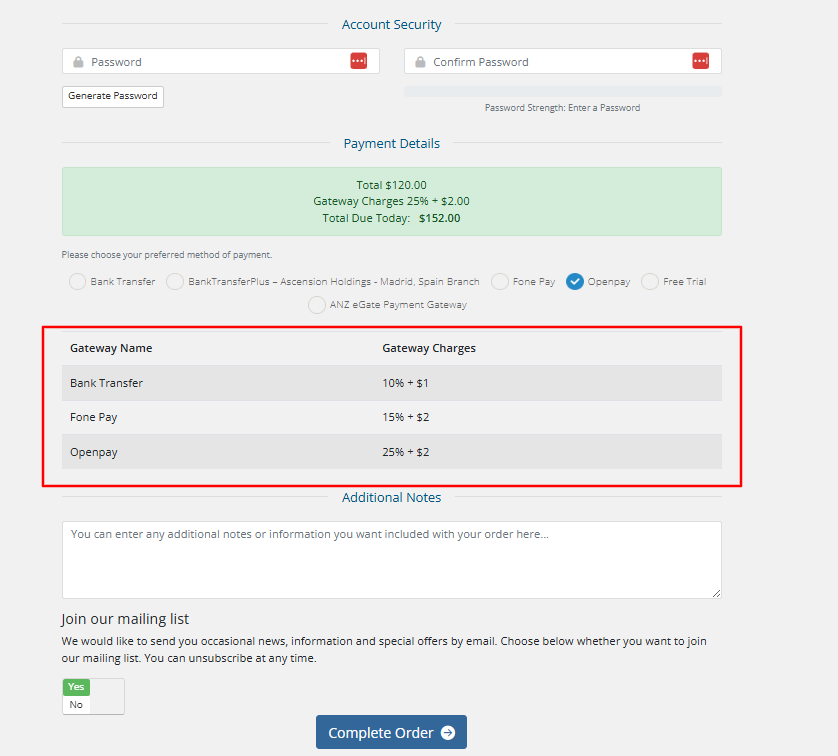
When Enable Table on Client Area Checkout Page is turned on, a table listing the charges of every enabled gateway is displayed below the payment methods, so the client can compare them before choosing.
Invoice:
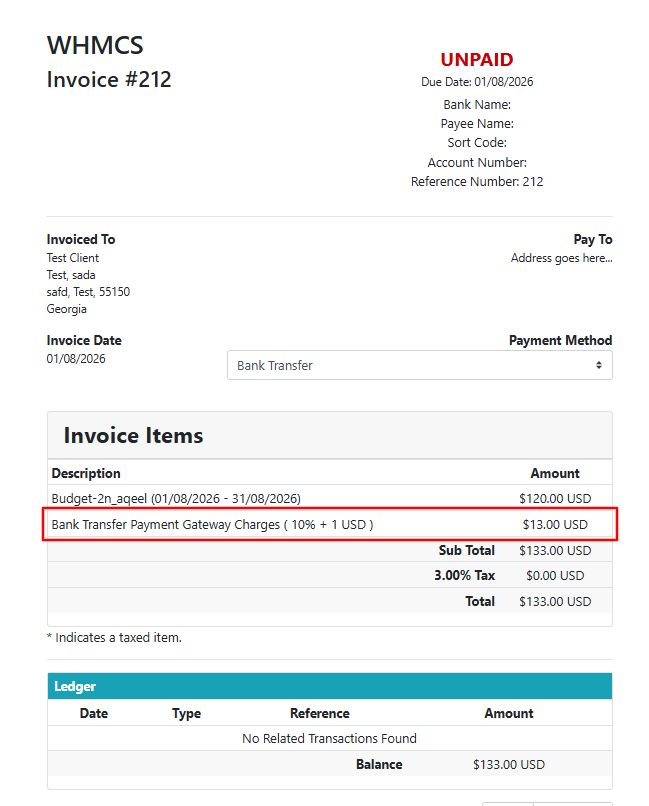
The gateway fee is added to the invoice as its own line item, using the description configured on the Settings tab. If Additional Tax is enabled for that gateway, the invoice tax is applied to the fee line as well.
Paying With Account Credit:
If the client’s credit balance covers the whole invoice, no gateway fee is charged — the fee line item is removed. When the credit only covers part of the invoice, the fee is calculated on the remaining amount the client actually pays through the gateway. If an invoice that already carried a fee ends up being paid entirely with credit, the fee is removed and refunded back to the client’s credit balance.
Additional Information:
1. The module stores its data in three database tables: whmp_pgf_gateways (per-gateway fee settings), whmp_pgf_excluded_users (excluded clients) and whmp_pgf_settings (global settings). They are created automatically on activation.
2. Fees are only ever added to invoices with the status Unpaid or Draft. Paid, cancelled, and refunded invoices are never modified.
3. The fixed amount fee is defined in your default currency and converted into the client’s currency using the WHMCS exchange rate.
4. Fee recalculation runs on invoice creation, invoice total updates, payment gateway changes, and once a day through the WHMCS daily cron.
5. The module checks for a new version once a day and updates itself automatically as long as the license is active.
Update Instructions:
The module updates itself automatically through the WHMCS daily cron job. To update it manually:
1. Back up the existing modules/addons/payment_gateway_fees/ folder.
2. Upload the new version over it, replacing the existing files.
3. Open the module in the admin area and confirm the new version number on the Info tab.
The license key persists across updates — it is stored in the database, not in a file.
Common Problems:
⦁ The module shows “Please Enter License Key” after activation — the key has not been saved yet, or it was entered with a leading or trailing space. Re-enter it under Configure and press Save Changes, then press the refresh icon next to “Check Your License Status”.
⦁ The license shows as invalid on a working key — the license is locked to a domain, IP and directory. If you moved WHMCS to a new server or domain, request a license reissue from WHMPress. Also make sure the server can reach whmcs.whmpress.com over HTTPS.
⦁ No fee is added to an invoice — check that the gateway toggle is enabled on the Dashboard, that the client is not on the Excluded Clients list, that the invoice total is above the Minimum Invoice Amount, and that the invoice status is Unpaid or Draft. Enable Module Logs to see the exact calculation.
⦁ The fee does not appear on the checkout page — your active order form template is not one of the automatically supported ones. Follow the Integration Code tab and add {$paymentGatewayFeesContent} to your order summary template.
⦁ The fee amount looks different from what was configured — a Threshold cap, the Minimum Invoice Amount, the round off setting, or currency conversion for a client on a non-default currency can all change the final figure. The module log shows the base amount, the conversion rate and the resulting fee for each calculation.
Conclusion:
Thank you for reviewing this document. If you have any questions or need further assistance, please feel free to reach out.
[ WHMPRESS.com ]
[ [email protected] ]