Costs go up. Your provider’s bandwidth bill jumps, license fees creep, and suddenly the margin on your $4.99 shared hosting plan is embarrassing. The fix is a price increase — but if you’re editing WHMCS products one at a time, “quick price bump” turns into a Saturday afternoon you didn’t plan for.
WHMCS’s native Bulk Price Updater and the WHMPress Bulk Pricing Update Server Module only change the price on services clients already have — not your base product, add-on, or domain pricing. If you need to update what new orders and the order form actually charge, especially across multiple products, domains, and currencies, that’s what Product Pricing Manager for WHMCS is built for.
Why “just edit the products” doesn’t scale
I get why hosts put this off. WHMCS’s product config screen is fine for one product. It falls apart the moment you have 15 shared hosting tiers, 8 VPS plans across two locations, a handful of domain TLDs, and a stack of add-ons like backups and dedicated IPs — each with monthly, quarterly, semi-annual, and annual pricing. That’s not a five-minute job, that’s 40+ fields per product, times however many products you’re touching.
And the risk isn’t just wasted time. Every manual edit is a chance to fat-finger a decimal, skip a billing cycle, or forget the annual price entirely while you update monthly. That manual slog is exactly the base-pricing problem further down this page — but first, here’s what WHMCS already gives you for free, and where it actually stops.
What WHMCS’s built-in Bulk Price Updater actually covers
Before you reach for a marketplace module, know what’s already in the box. WHMCS includes a Bulk Pricing Updater addon — free, native, and activated from Configuration > System Settings > Addon Modules. It only touches the price on services clients already have — the hosting accounts, domains, and add-ons sitting in their client area as active services. You filter by product, billing cycle, current price, or status, then push a flat-fee change to what those specific services renew at — it’s a fixed dollar amount only, WHMCS doesn’t give you a percentage option here.
What it does not do is touch your base product, add-on, or domain configuration — the pricing a brand-new order or your public order form uses. Run it, and every existing client’s next renewal reflects the new number, but a customer signing up tomorrow still sees whatever price is sitting in Setup > Products/Services until you go edit that separately.
Where the Bulk Pricing Update Server Module extends that
The Bulk Pricing Update Server Module works on the same layer as the native tool — active client services, not your base catalog — but it adds one thing WHMCS’s own addon doesn’t give you: a percentage-based control that reaches products, add-ons, and domains together from one screen in the WHMCS dashboard, instead of the native tool’s flat-fee-only, filter-by-filter approach.
If your only goal is “raise what every existing hosting, add-on, and domain client is already paying, by X%, in one pass,” this is the faster route. It still won’t move the number a new customer sees on the order form — that’s a different job.
Where Product Pricing Manager for WHMCS is different
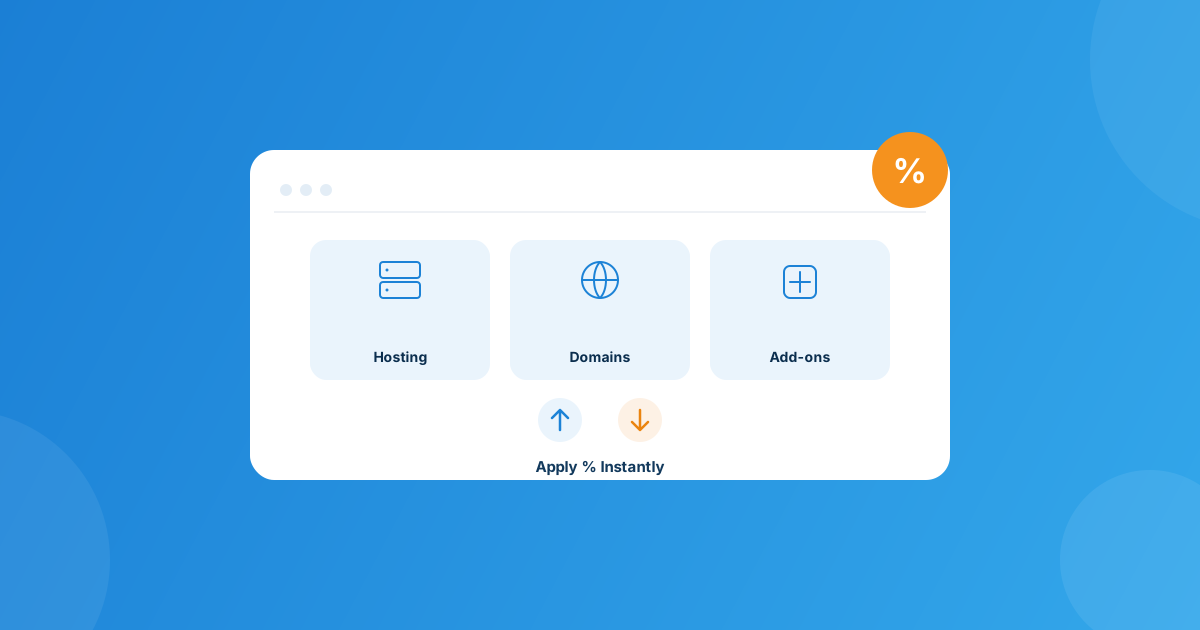
This is the one that operates on a different layer entirely. Product Pricing Manager for WHMCS updates your main product, add-on, and domain pricing — the base configuration that determines what a new order, an upgrade, or your public order form charges. It doesn’t touch what clients already provisioned are currently paying; it changes the number everyone else sees going forward.
That distinction is exactly why it matters more as you scale. Editing the base price on one product in WHMCS’s UI takes thirty seconds. Editing it across 15 hosting plans, a dozen TLDs, and three billing currencies is a different job entirely — and that’s the job this module is built for:
- Products and services — apply a percentage change to any product’s base price across selected billing cycles at once.
- Product add-ons — the add-on’s base price updates alongside the product, not as an afterthought.
- Domain registrations by TLD — adjust base registration/renewal pricing for specific TLDs (.com, .net, .org, etc.) instead of every domain you sell.
- Domain add-ons — DNS management, email forwarding, and ID protection base pricing move with the domain.
- Per-currency percentages — set a different base-price percentage for each currency you bill in, so a USD change doesn’t quietly leave your EUR catalog stale.
- Real-time sync — the new base prices show up in the client area and order forms immediately, with logging you can enable to audit what changed.
Three tools, two different layers
| Tool | Updates | Adjustment type | Products | Add-ons | Domains / TLDs | Cost |
|---|---|---|---|---|---|---|
| WHMCS Bulk Price Updater (native) | Active client services | Flat fee only | Yes | No | No | Free, built in |
| Bulk Pricing Update Server Module | Active client services | Global % | Yes | Yes | Yes | From $5/mo or $39 one-time |
| Product Pricing Manager for WHMCS | Base product/add-on/domain pricing | %, per currency | Yes | Yes | Yes, by TLD | From $5/mo or $49 lifetime |
If your only goal is bumping what existing clients already pay, the native updater is free but flat-fee only, and the Bulk Pricing Update Server Module is the faster way to do it by percentage across products, add-ons, and domains in one screen. If what you’re actually chasing is keeping your base catalog price current — across many products, many TLDs, and more than one currency — that’s a base-pricing job, and Product Pricing Manager for WHMCS is the one built for it.
How a bulk update flows in practice
Regardless of which tool you use, decide which layer you’re actually changing before you touch anything:
- Pick your layer first. Updating what existing clients already pay (active services) and updating your base catalog price are two separate jobs in WHMCS — running one doesn’t automatically run the other, and your terms of service should already say which one applies to existing clients at renewal.
- Decide whether a flat amount or a percentage actually fits the plan you’re adjusting — a $2 bump means something very different on a $5 plan than a $50 one. Just remember WHMCS’s native updater only gives you the flat option; percentage adjustments require one of the WHMPress modules.
- Filter to the exact scope first: one product group, one billing cycle, one currency at a time, so you can review before it’s live.
- Apply the change and check a sample invoice (for active services) or the order form (for base pricing) immediately, in every currency you support.
Mistakes I still see hosts make
A few things trip people up every renewal season, module or not:
- Assuming one update covers both layers. Updating the base price doesn’t touch existing renewals, and updating existing renewals doesn’t touch what new signups see — hosts often run one and expect the other.
- Forgetting add-ons entirely. Backups, dedicated IPs, and extra mailboxes often stay at old pricing for years because nobody remembers to touch them.
- Updating one currency and not the rest. If you bill in USD and EUR, a percentage change needs to be applied in both, and not necessarily by the same raw number.
- No client notice. Even where you’re legally fine to raise prices at renewal, a short heads-up email cuts support tickets and chargebacks dramatically.
Frequently asked questions
What’s the difference between the native Bulk Price Updater and Product Pricing Manager for WHMCS?
The native Bulk Price Updater changes what clients already provisioned are currently paying, and only by a flat fee — there’s no percentage option built in. Product Pricing Manager for WHMCS changes something different: your base product, add-on, and domain pricing by percentage, the numbers a new order or your order form uses.
Will bulk-updating my base product price change what existing clients already pay?
No. Changing your base catalog price with Product Pricing Manager for WHMCS affects new orders, upgrades, and the order form going forward — it doesn’t retroactively change the recurring amount on services clients already have. To change what existing clients pay, you need the native Bulk Price Updater (flat fee only) or the Bulk Pricing Update Server Module (percentage-based).
Can I bulk update domain and add-on pricing, not just hosting products?
Yes, on either layer. For services clients already have, the Bulk Pricing Update Server Module covers products, add-ons, and domains by percentage. For your base catalog pricing, Product Pricing Manager for WHMCS covers the same three, plus per-TLD and per-currency control.
Do I need to notify clients before raising WHMCS prices?
It’s not always legally required, but it’s good practice. A short notice email before renewal reduces disputed charges and support tickets, and keeps the change from feeling like a surprise.
The bottom line
If all you need is to bump what clients who already have a service are paying, WHMCS’s native Bulk Price Updater is free but flat-fee only, and the Bulk Pricing Update Server Module gets you there by percentage, faster, across products, add-ons, and domains in one screen. But if what you actually need is to keep your base product, add-on, and domain pricing current — the numbers new orders and the order form charge — especially once you’re juggling multiple products, TLDs, and currencies, that’s a different job, and Product Pricing Manager for WHMCS is the one built for it.
Update your base product, add-on, and domain pricing across every currency you bill in with Product Pricing Manager for WHMCS — or if your pricing logic needs more than a percentage change, our Custom WHMCS Development team can build it.
Get the ModuleProduct Pricing Manager
Update Your Base Pricing
Update your base product, add-on, and domain pricing across TLDs and currencies — the layer that determines what new orders actually pay.
Get the Module View product details →Custom WHMCS Development
Bespoke Modules & Integrations
Need a module, gateway, or integration built around how your business runs? We build upgrade-safe, API-driven WHMCS solutions.
Get a Free Quote View services →