
Navigate to Server:
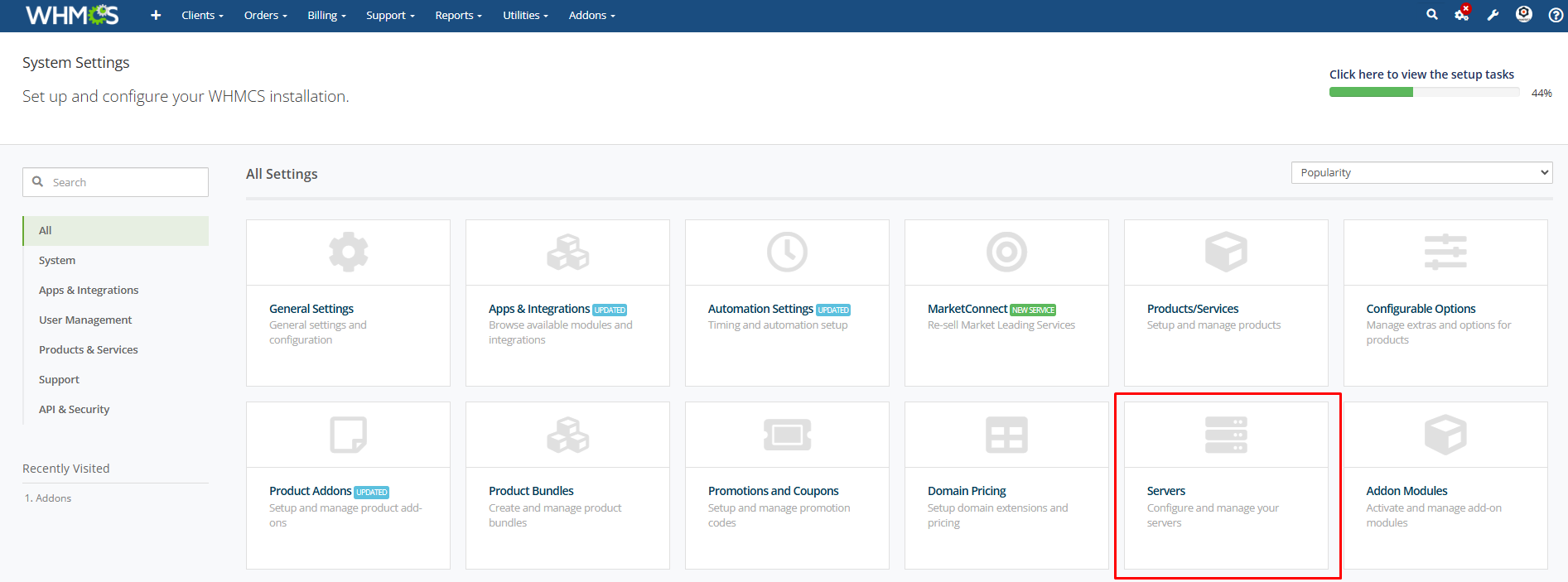
Add a New Server For Hetzner Dedicated Server.
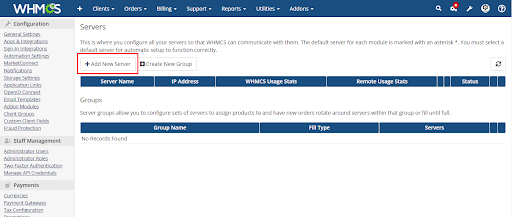
Select the Module Hetzner Dedicated Server Enter the Username or Password And Click Continue.
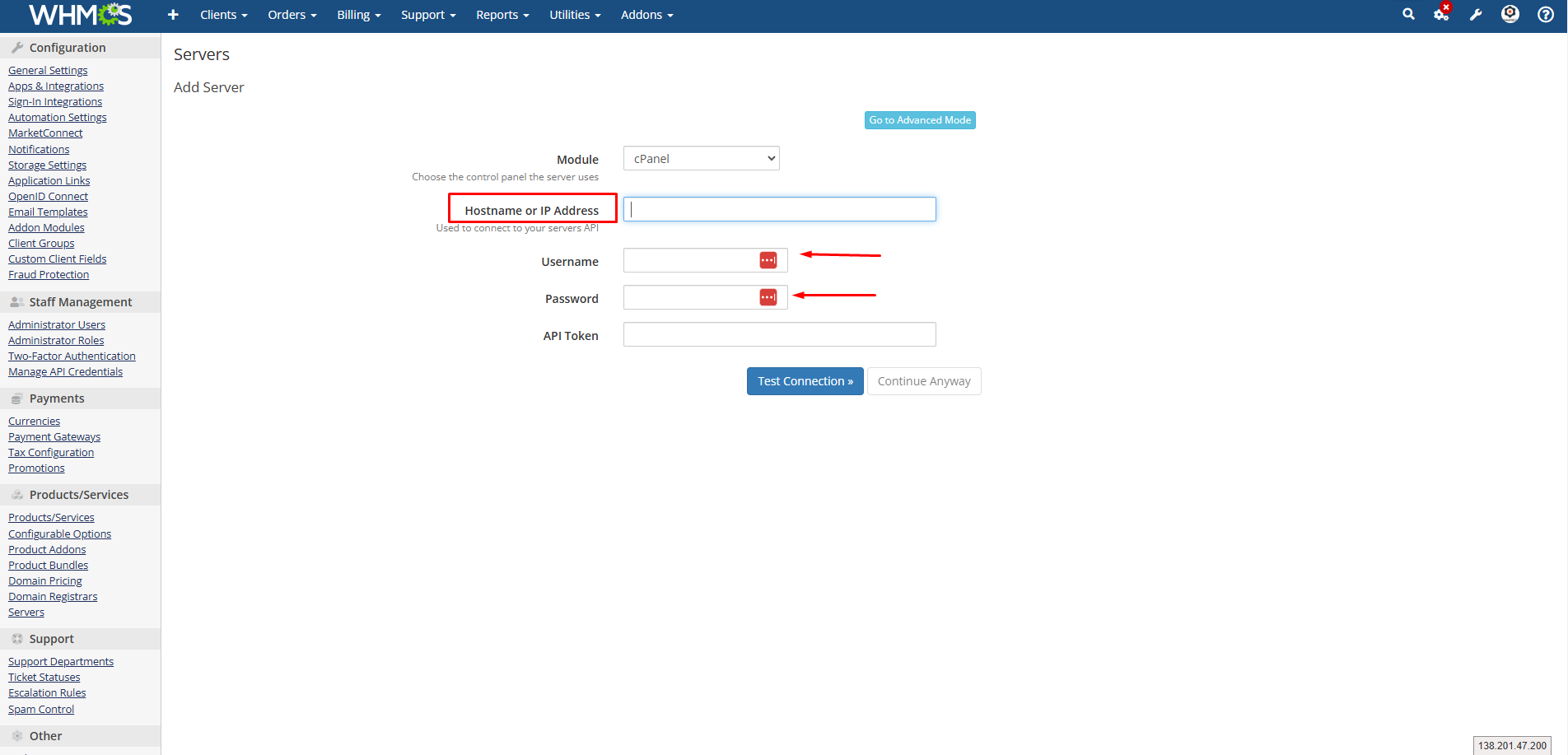
Add the WHMCS Administrator Username in the Username field.
Add your Hetzner dedicated API key in the password field.
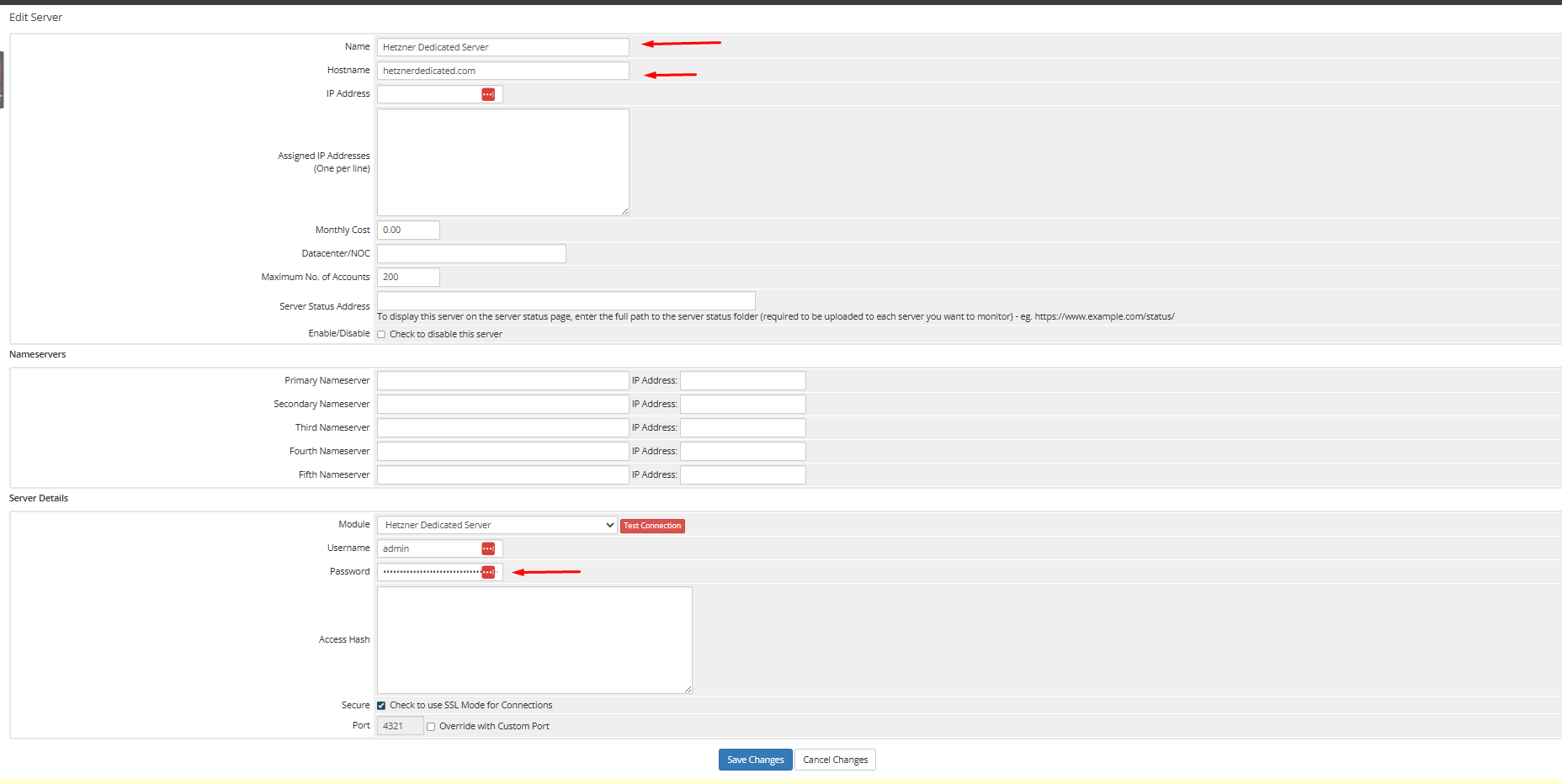
Enter any Name and Hostname of the module. And Click Save Changes.
Name: ( eg: Hetzner Cloud Server )
HostName: ( eg: hetzner.yourdomain.com )
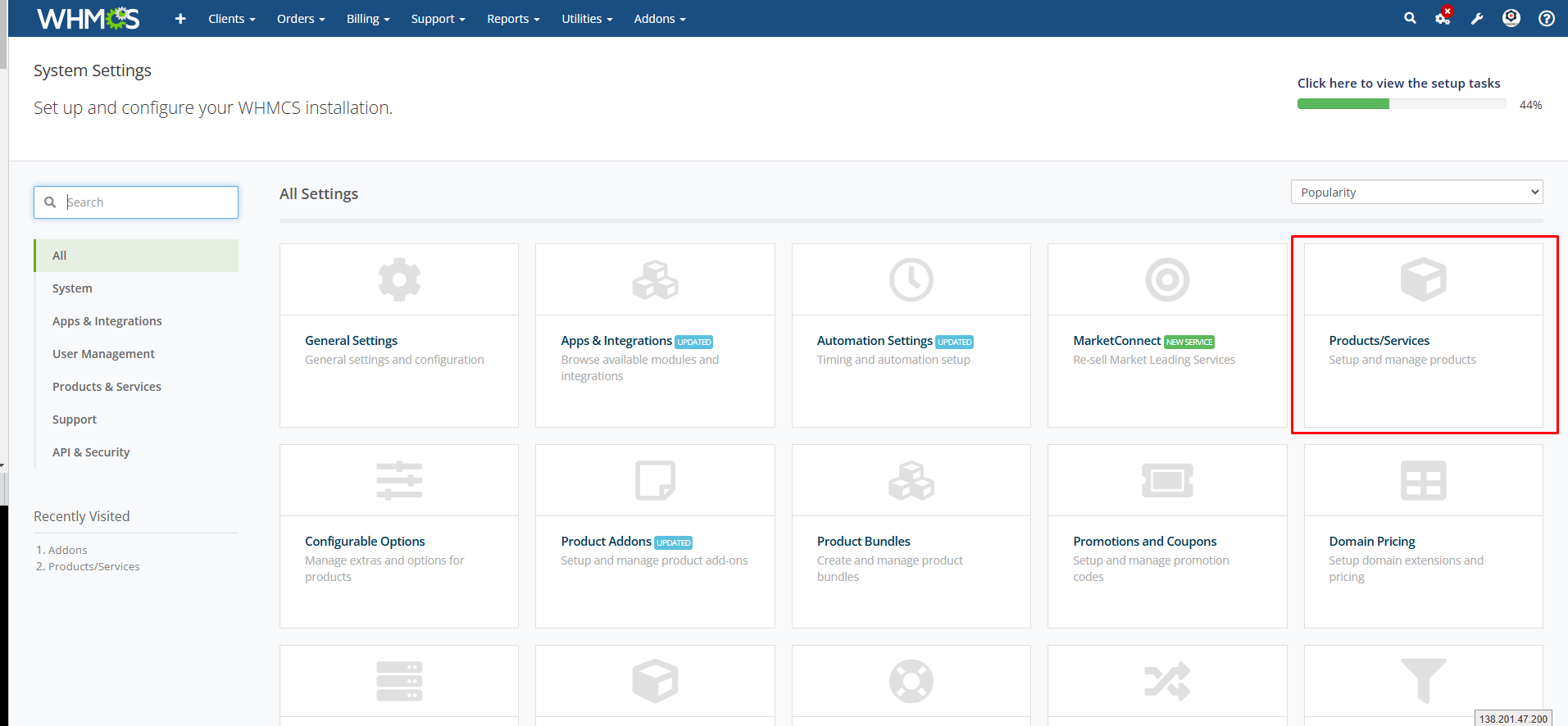
Now add the product for Hetzner Cloud Server. Navigate to system setting > Product and Services.
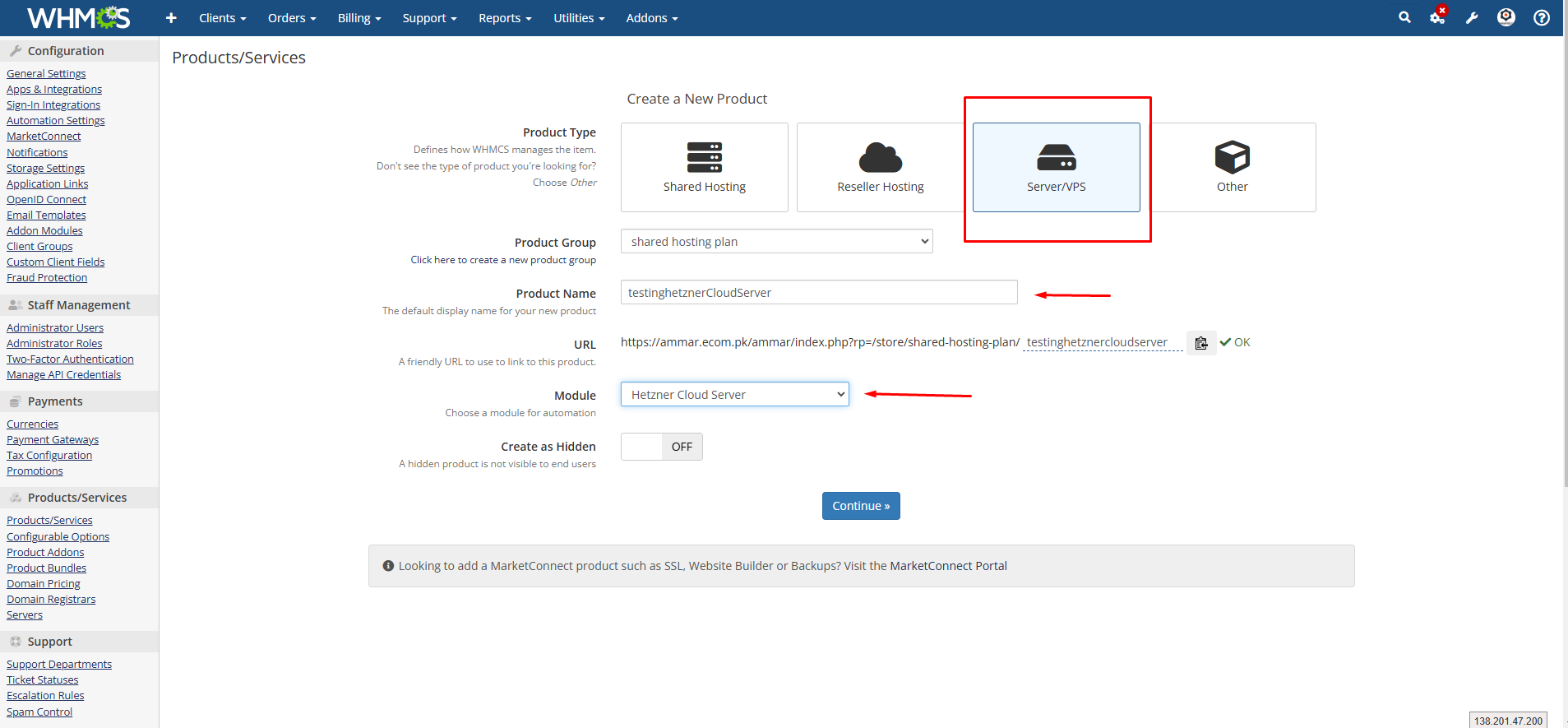
Select the Product type Server VPS Enter your product name Select the module Hetzner Dedicated Server.
Now navigate to module setting and you can select the server type according to your product you want to sell.
The admin can Select all the Client Area Features that they want to show to the client area.
Admin Area Features:
- Suspend / Unsuspend
- Custom Fields
Client Area Features:
- Power On
- Power Off
- Reboot Server
- Rescue Mood
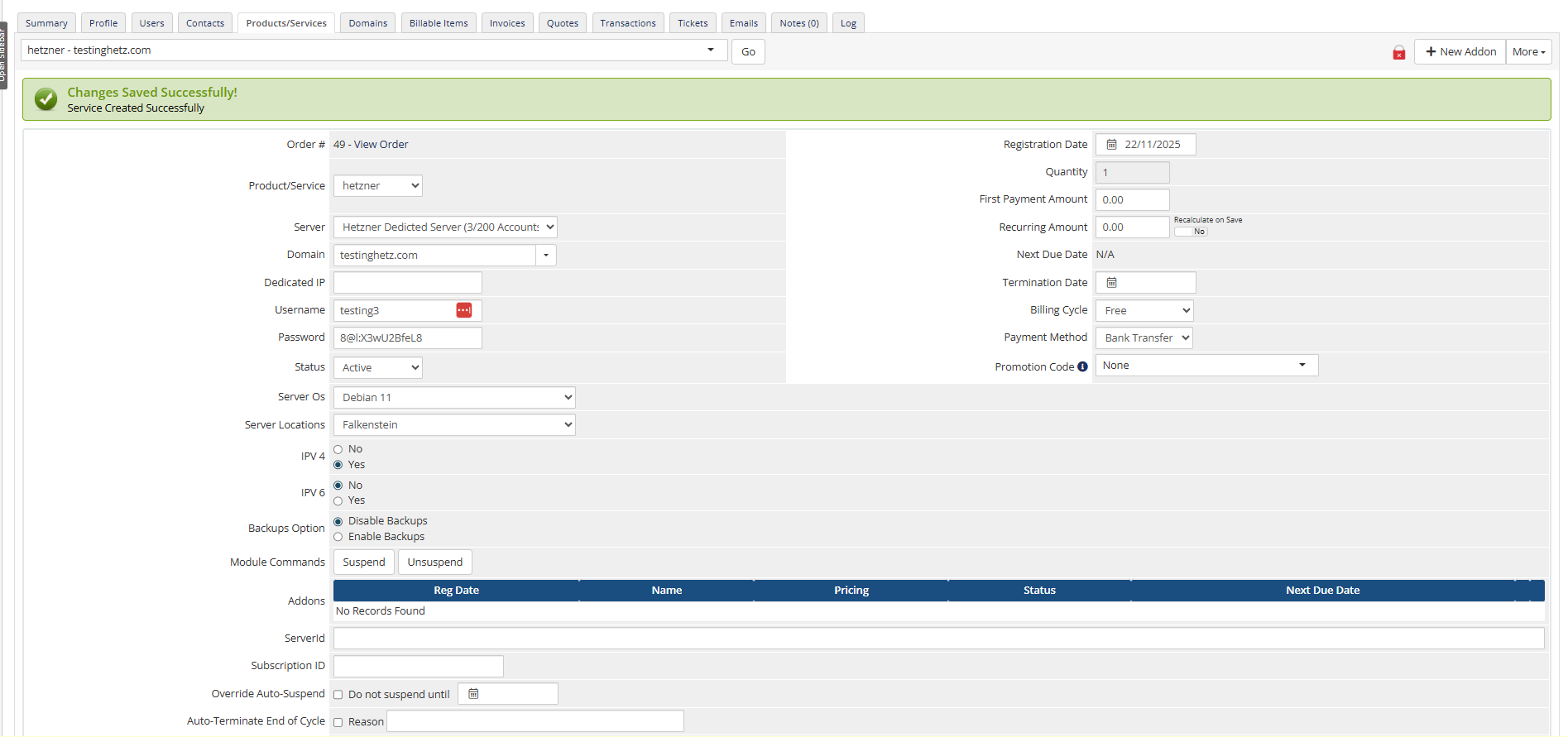
Now place an order of the product you have created For the Hetzner Dedicated Server and add your domain name once you accept the order the service will be created and you can perform all the actions in the client area.
After placing the order then login to your client area and check all the features that you have selected from the module setting are displayed.
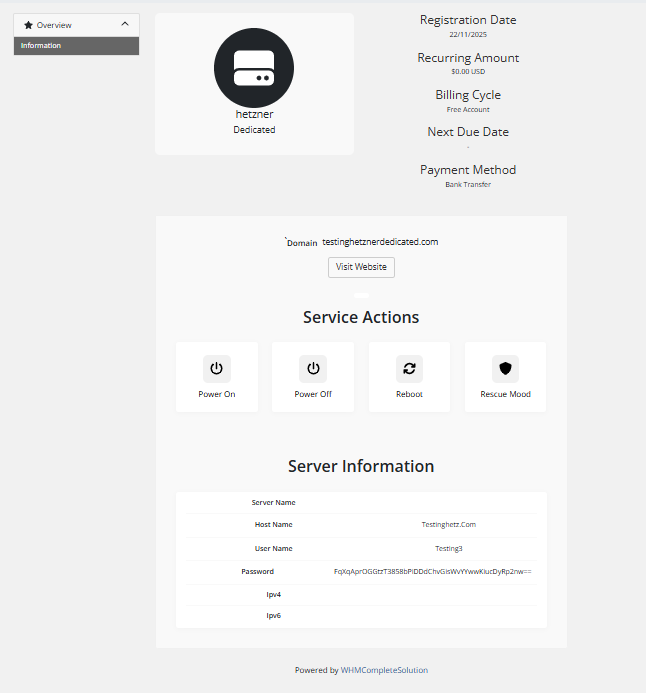
And you can test all the features of the module.
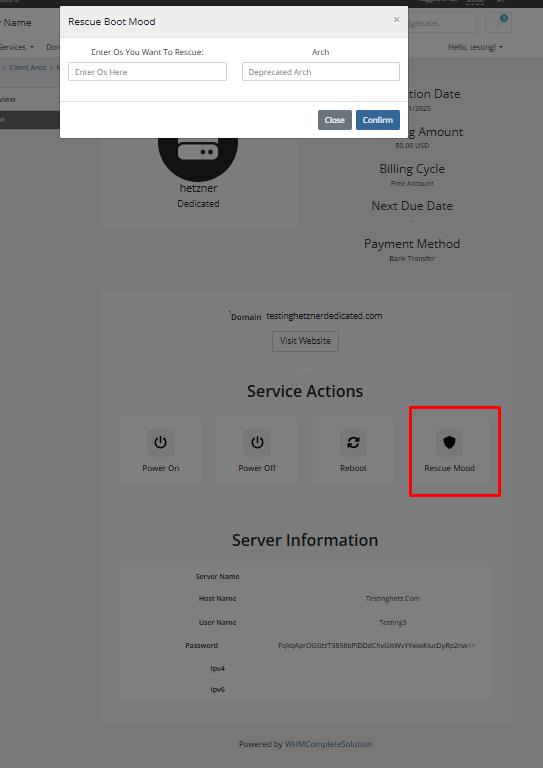
Now your server has been created successfully and your Module is ready to use.
Conclusion:
Thank you for reviewing this document. If you have any questions or need further assistance, please feel free to reach out.
[ WHMPRESS.com ]
[ [email protected] ]