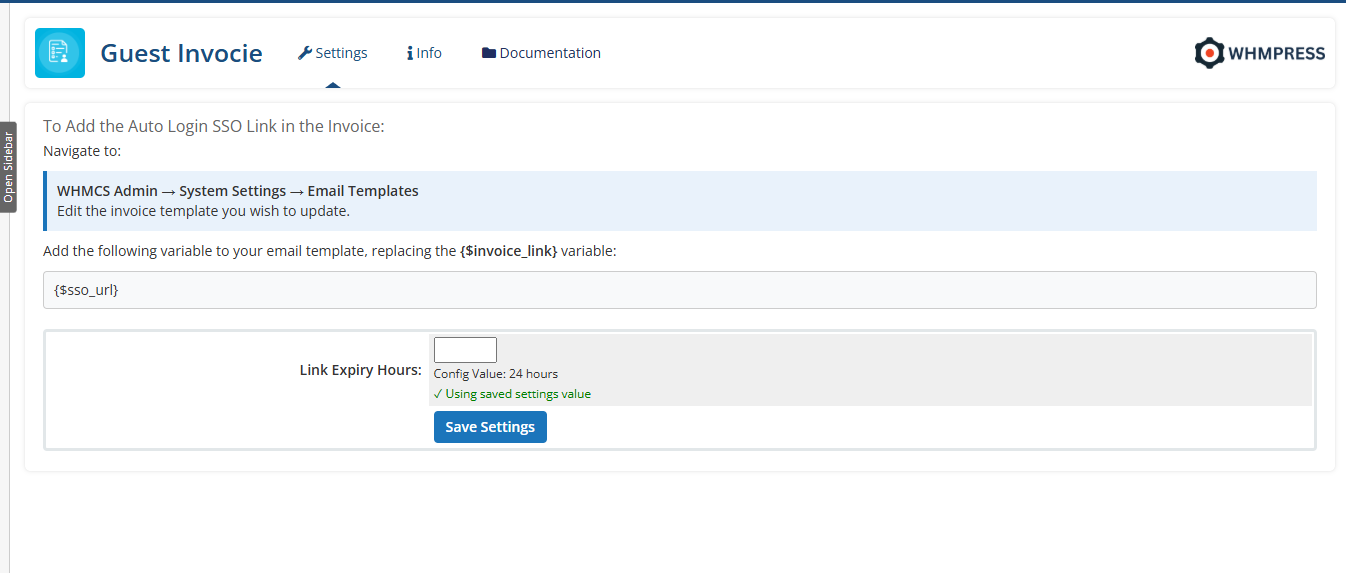
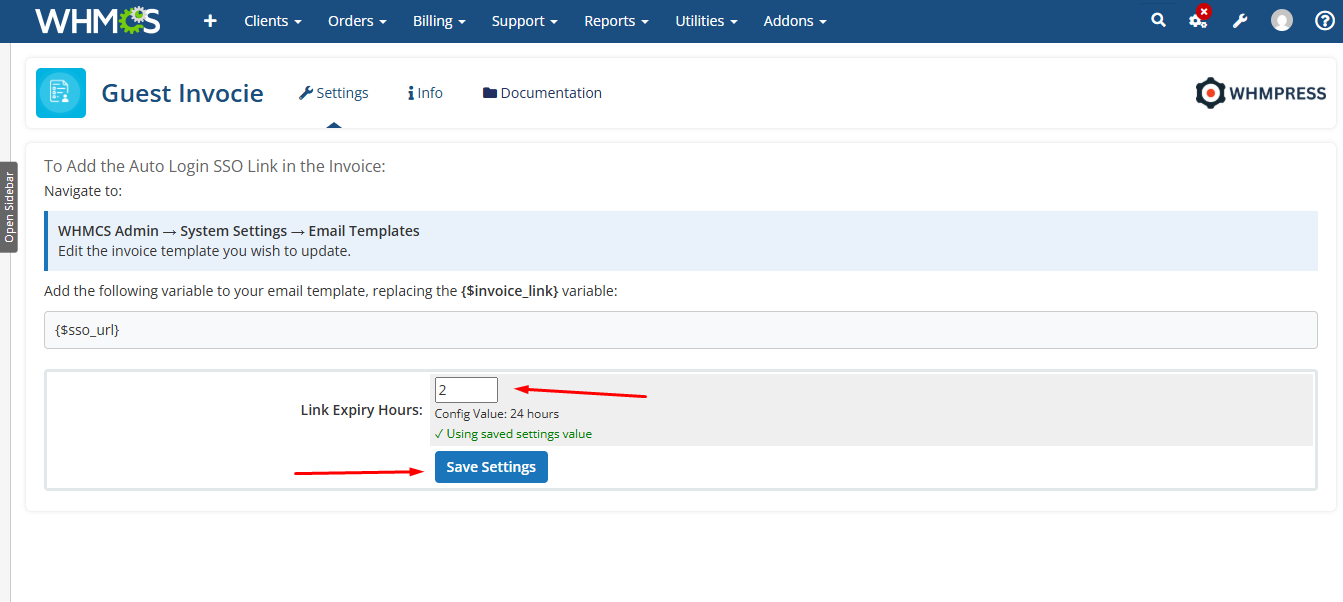
You can also set the link’s expiration period in the designated field it will expire after the time you choose. Don’t forget to click ‘Save Changes’ to apply your settings.
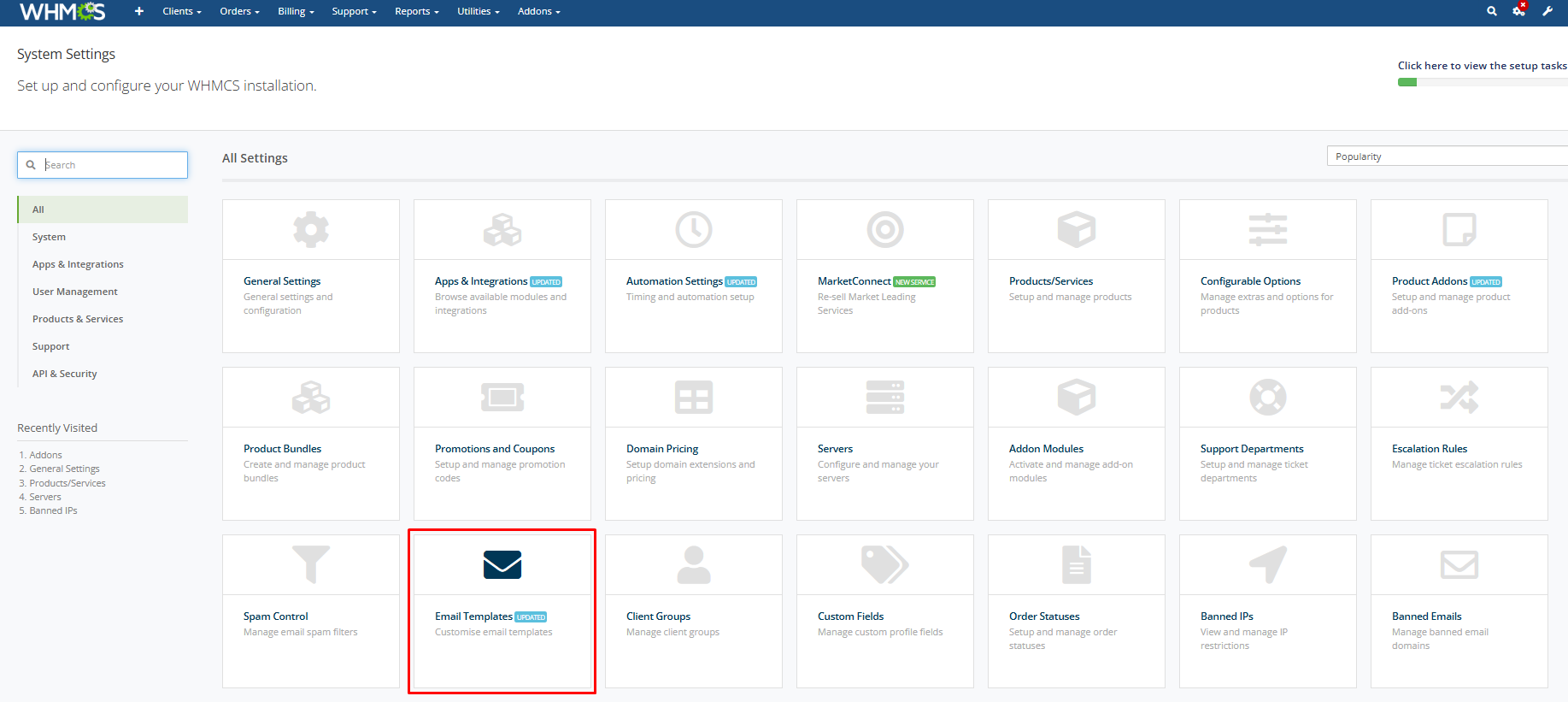
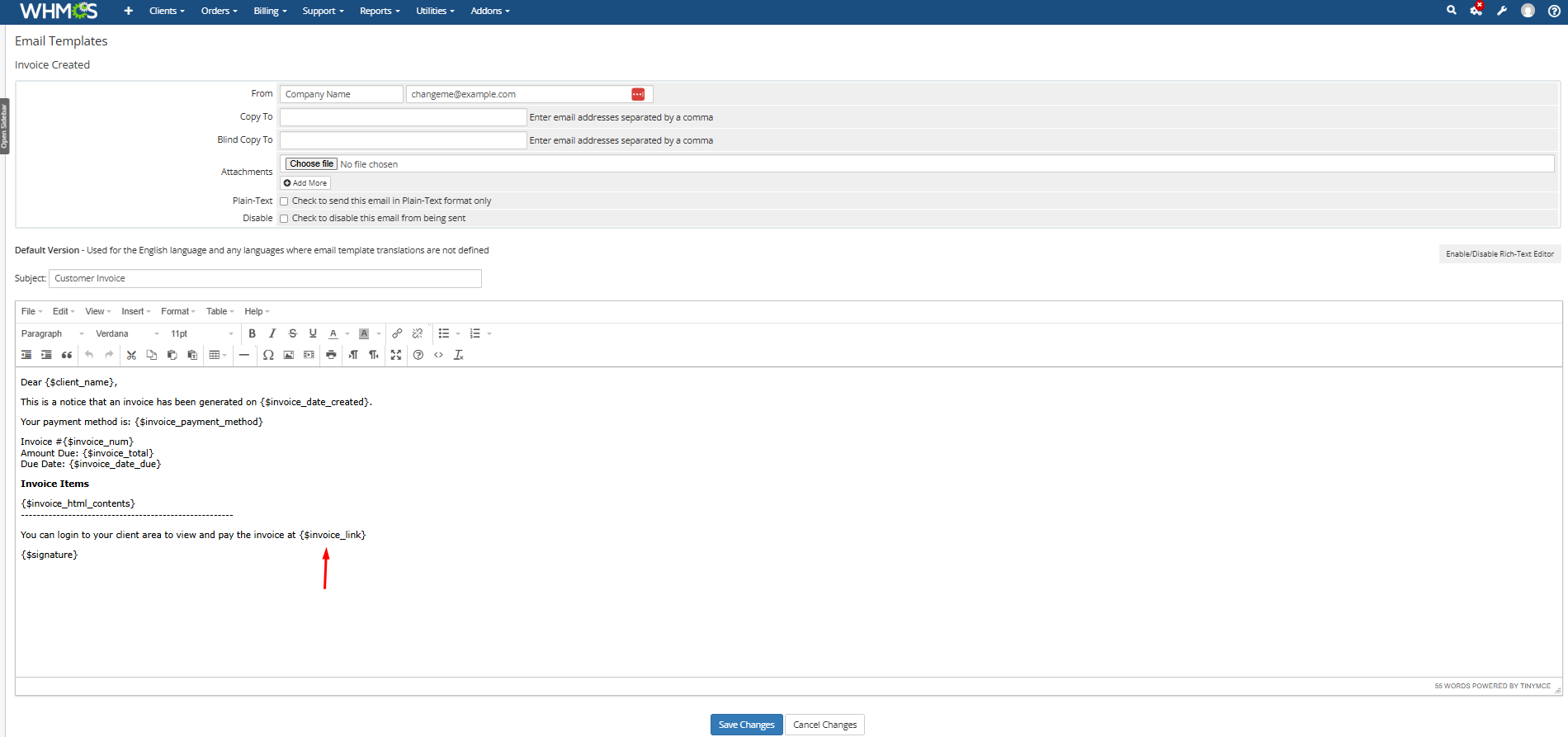
Next, Navigate to WHMCS Admin → System Settings → Email Templates
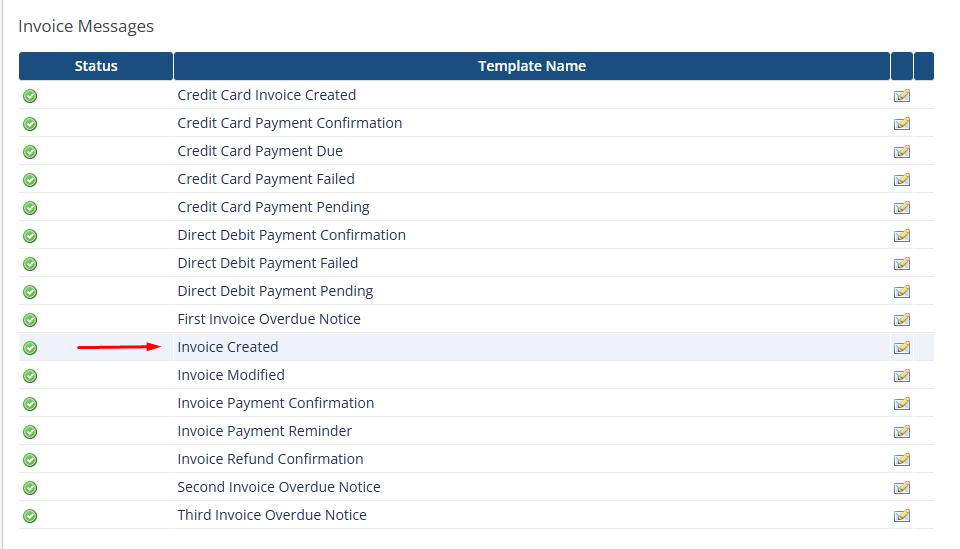
Now, Edit the email template where you want to include the guest invoice link.
Once you finalize the email template, locate the variable {$invoice_link} within it.
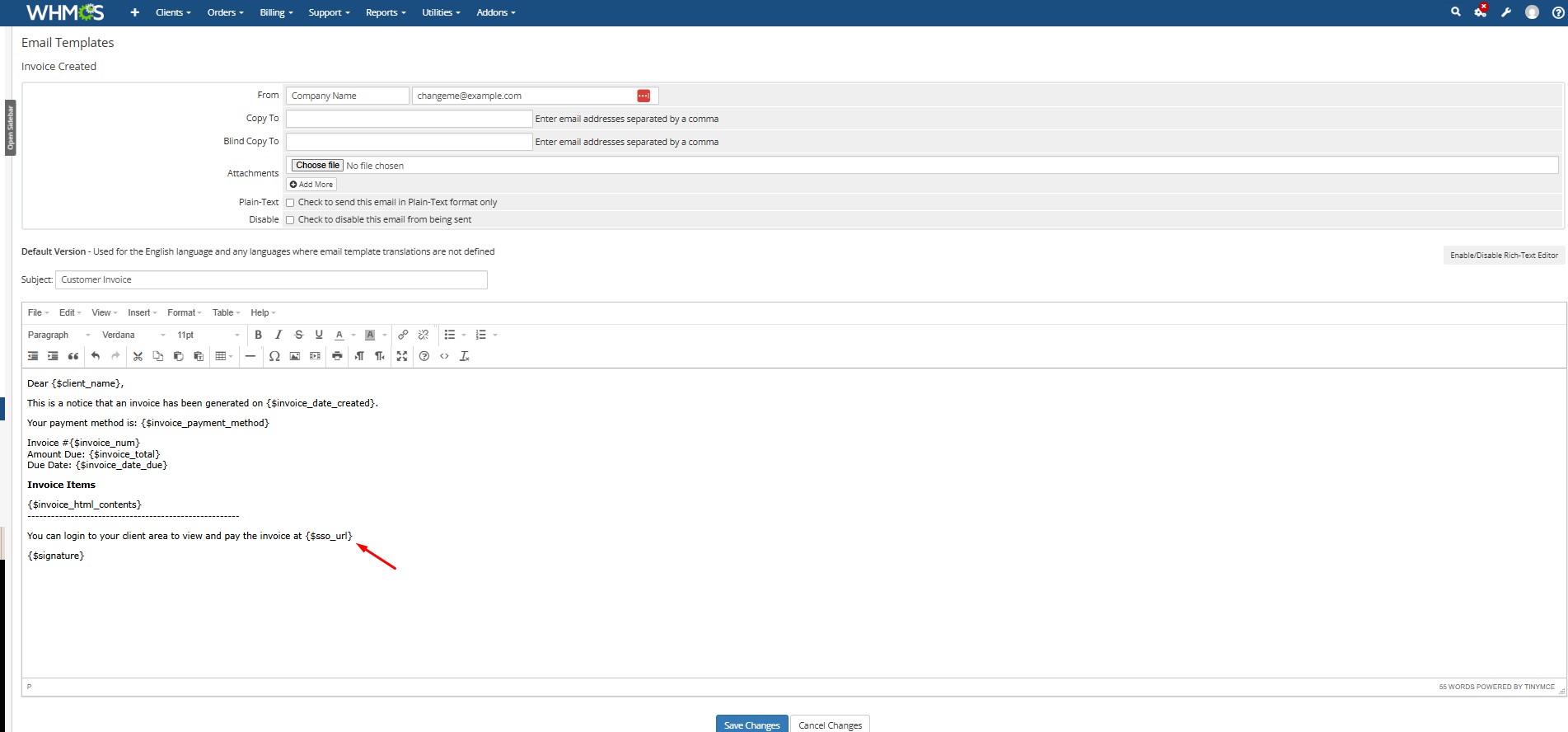
After locating the variable, simply replace {$invoice_link} with {$sso_url} and save the email template.
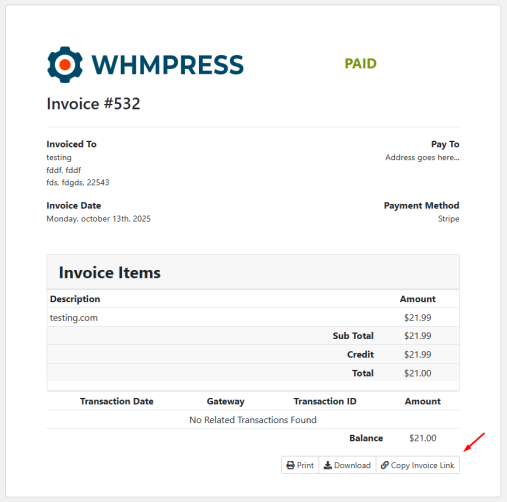
Once you’ve completed all the settings, and in whichever email template you added the module’s variable, the link will be sent in the email as soon as that email action is triggered. You can also copy that link directly from the invoice without logging in to the client area.
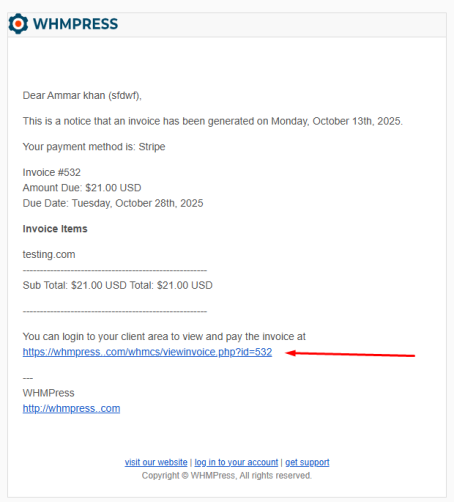
You’ll also receive the guest invoice link directly in your Gmail. You can simply click the link to go straight to your WHMCS Client invoice Page.
Conclusion: Thank you for reviewing this document. If you have any questions or need further assistance, please feel free to reach out.