

Navigate to Server:
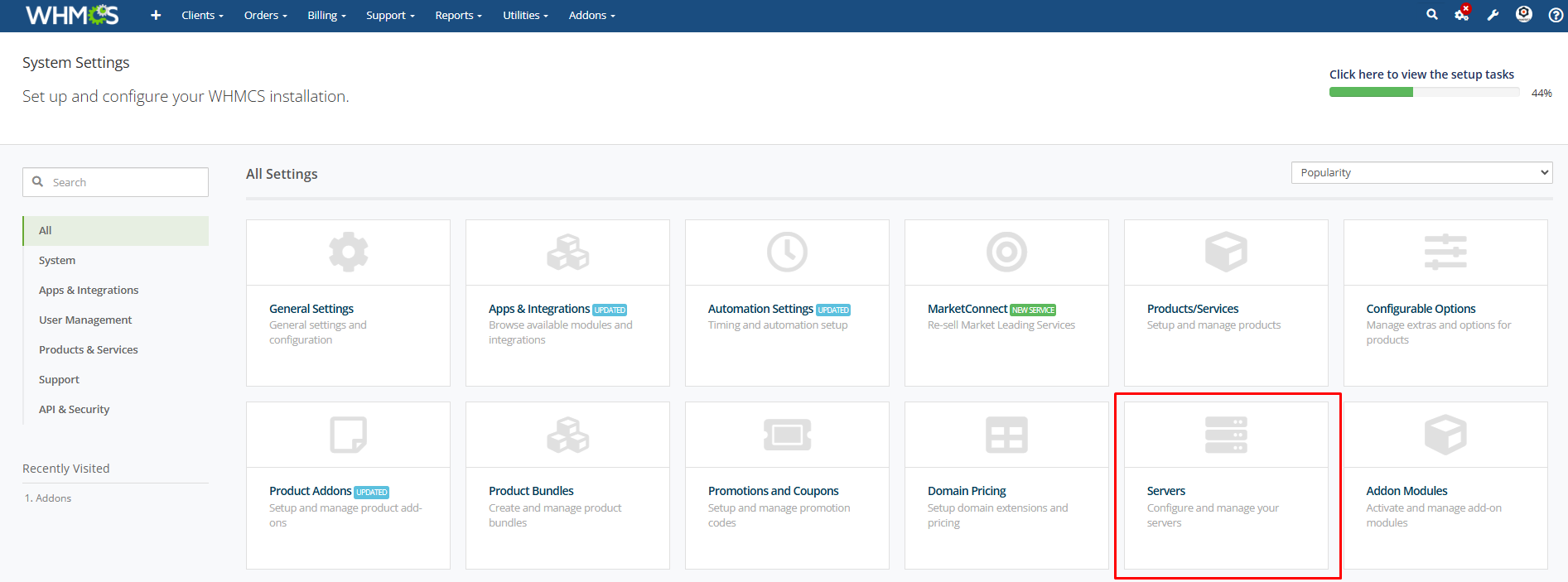
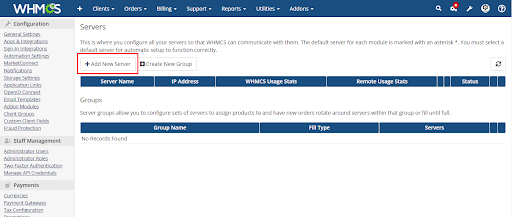
Add a New Server For NXT IPTV Dash Server.
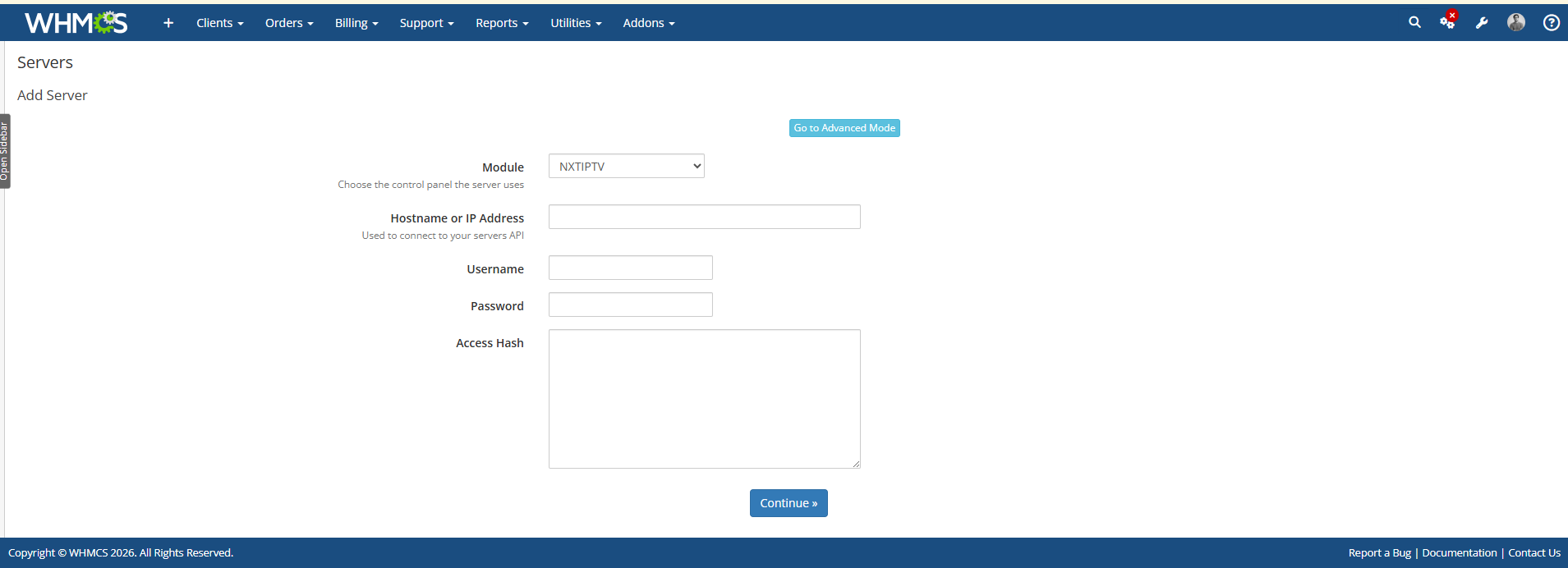
Select the Module NXT IPTV Dash Server, Enter the Username or Password, And Click Continue.
After adding the server, navigate to the Addon Modules page in your WHMCS admin area. Activate the addon module and enter your license key in the module settings to complete the activation process.

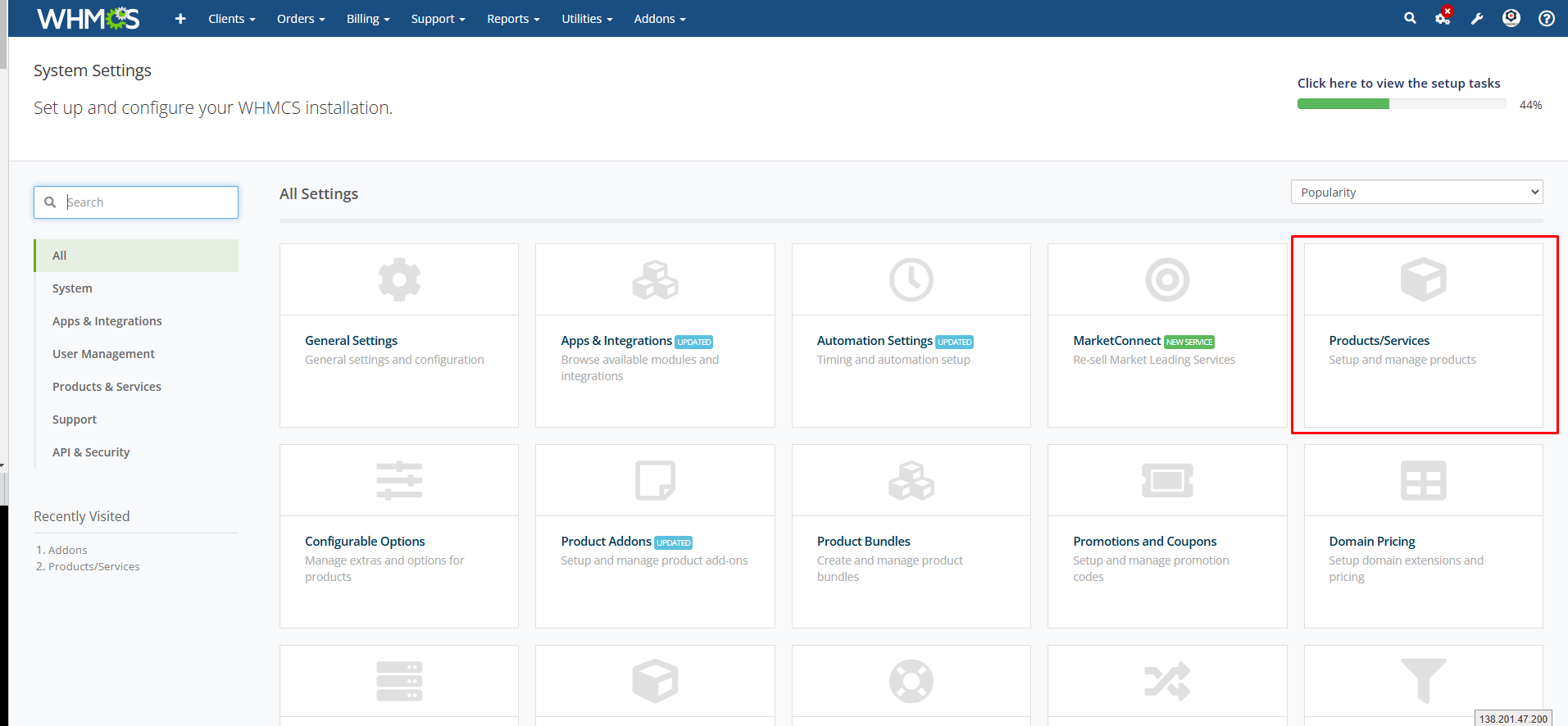
Now add the product for the NXT IPTV Dash Server. Navigate to System Settings> Product and Services.
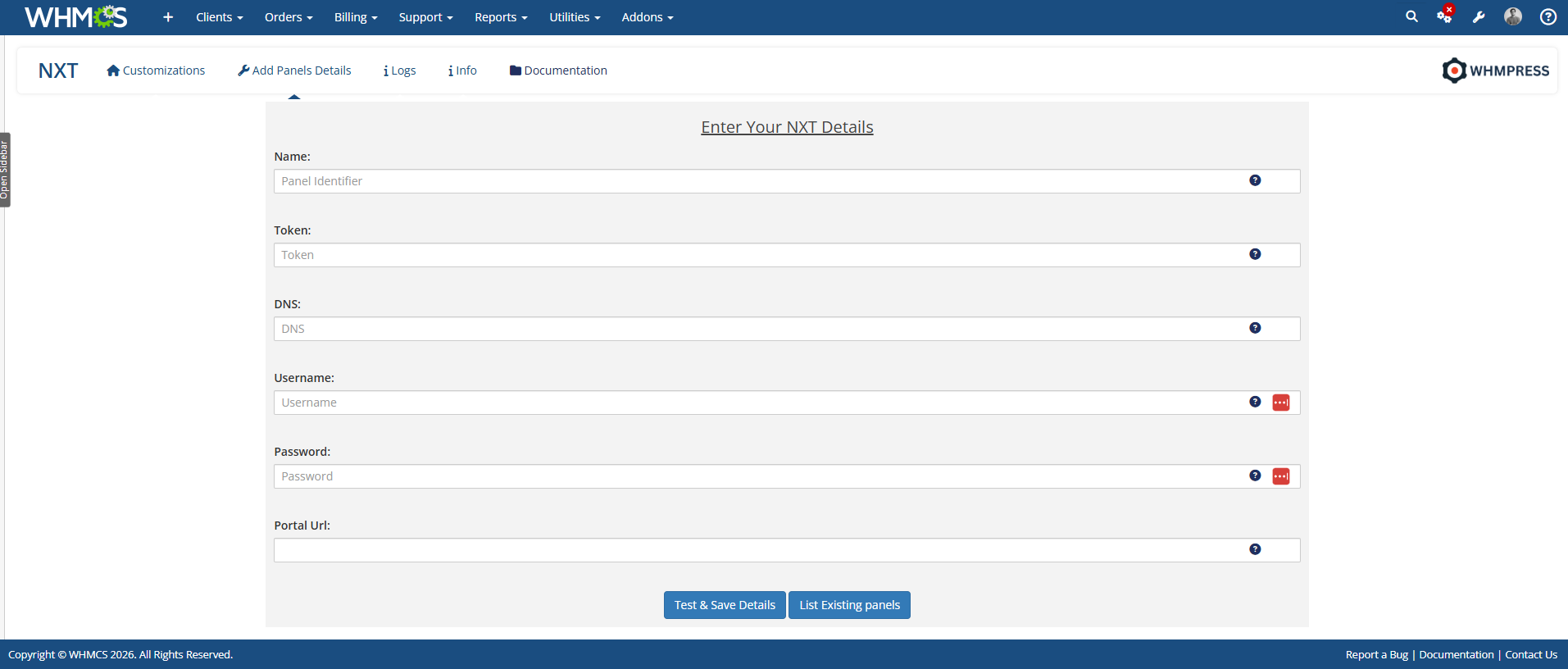
Next, navigate to the module dashboard and open the Add Panel Details page. Click the Add New Panel Details button and fill in all the required information. Once completed, save the details to proceed.
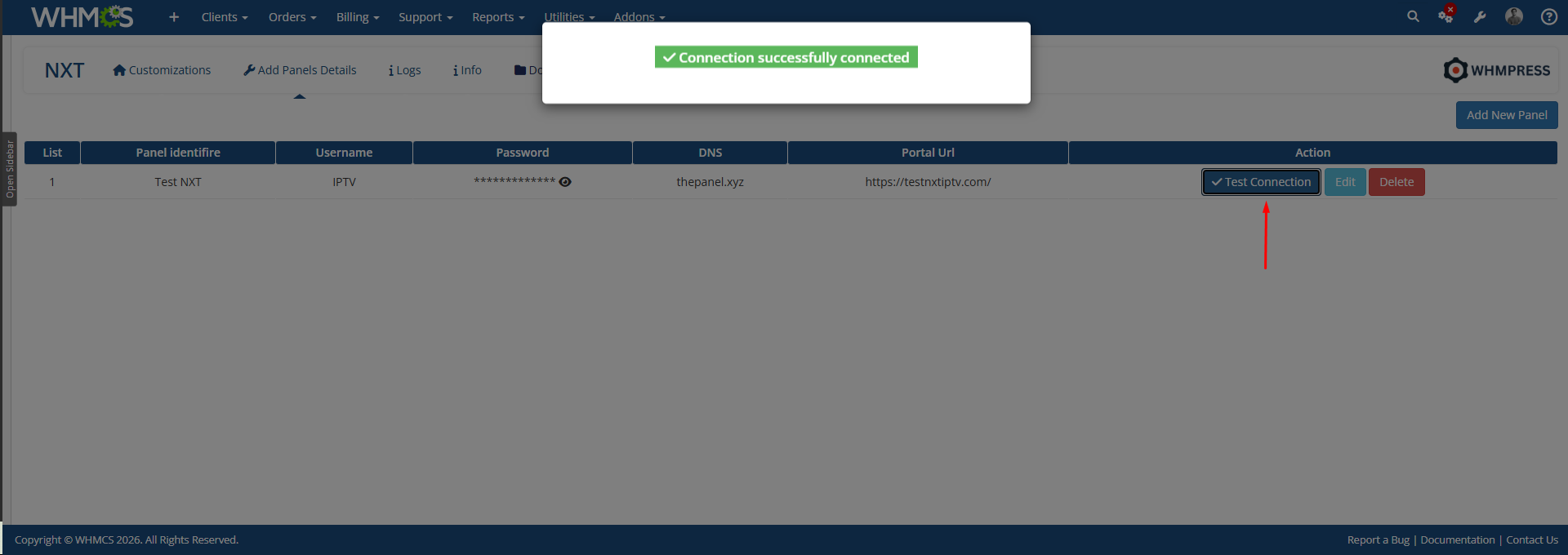
After adding the panel details, click the Test Connection button to verify that your NXT IPTV panel is connected successfully and that the provided credentials are working correctly.
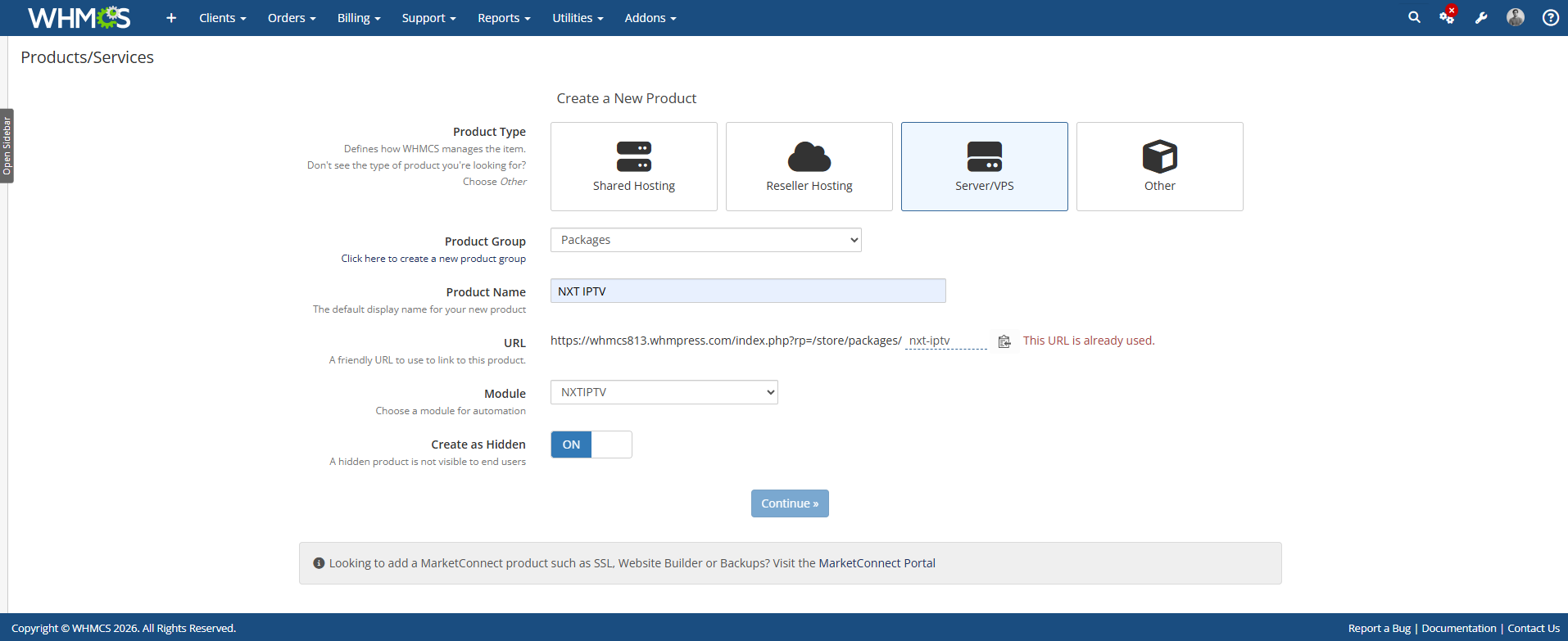
After adding the Panel details, create the Product. Select the Product type Server VPS. Enter your product name. Select the module NXT IPTV Dash Server.
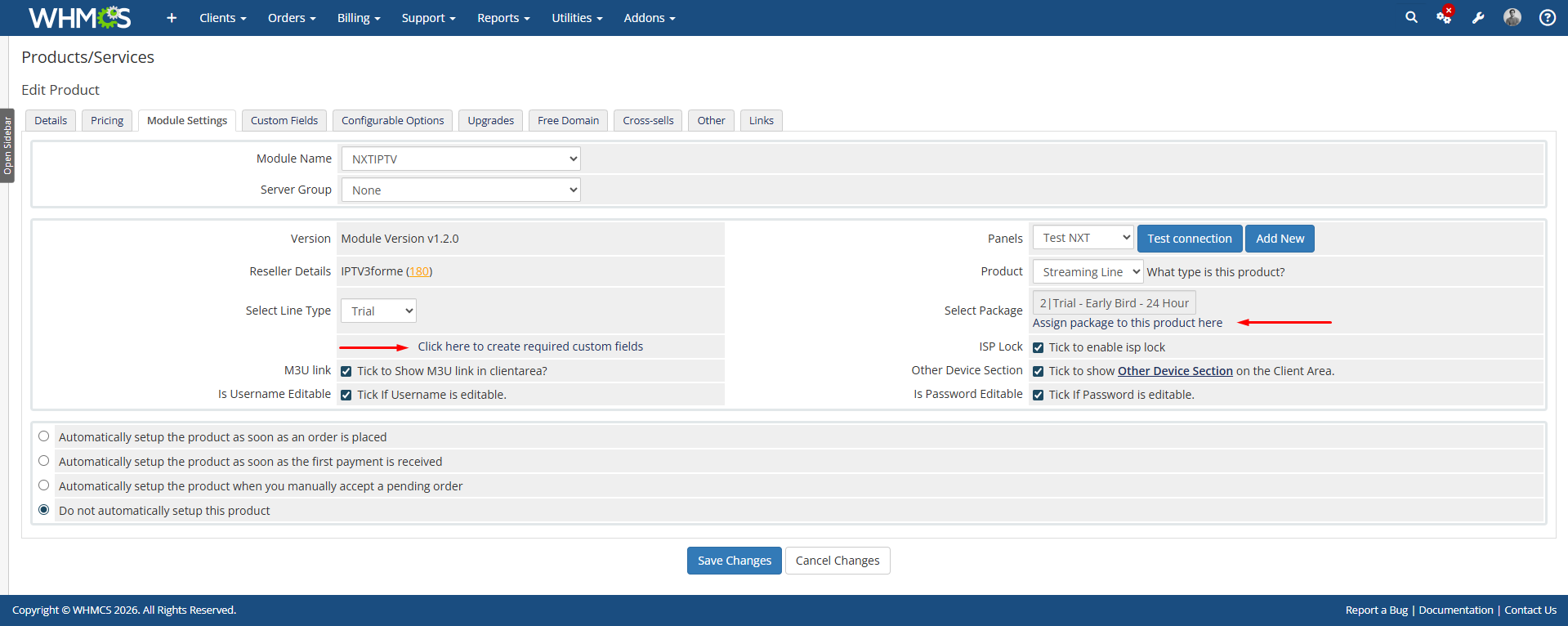
Now navigate to the module settings and select all the options according to your Choice
Now place an order for the product you have created for the NXT IPTV Dash Server. and add your domain name.
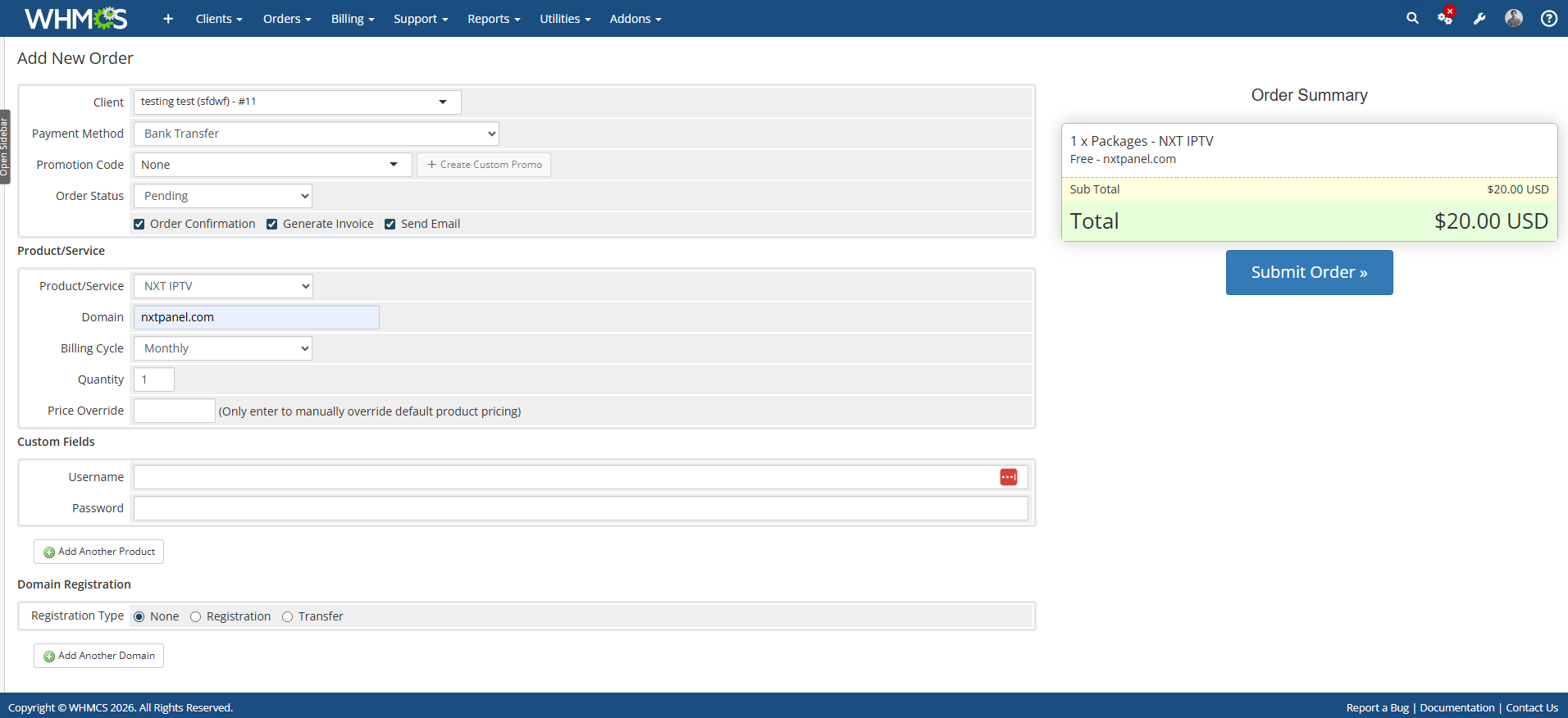
After placing the order, log in to your client area and check that all the features you selected in the module settings are displayed.
Conclusion:
Thank you for reviewing this document. If you have any questions or need further assistance, please feel free to reach out.
[ WHMPRESS.com ]
[ [email protected] ]