

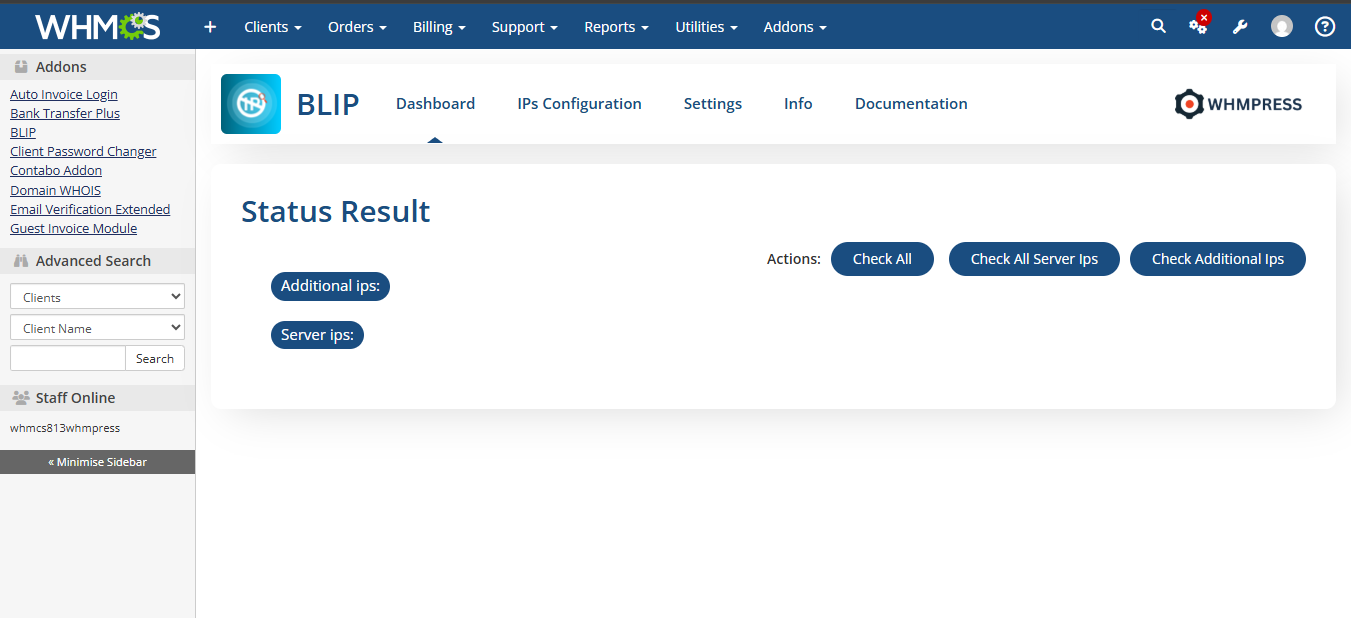
After activating the module, please navigate to the module dashboard
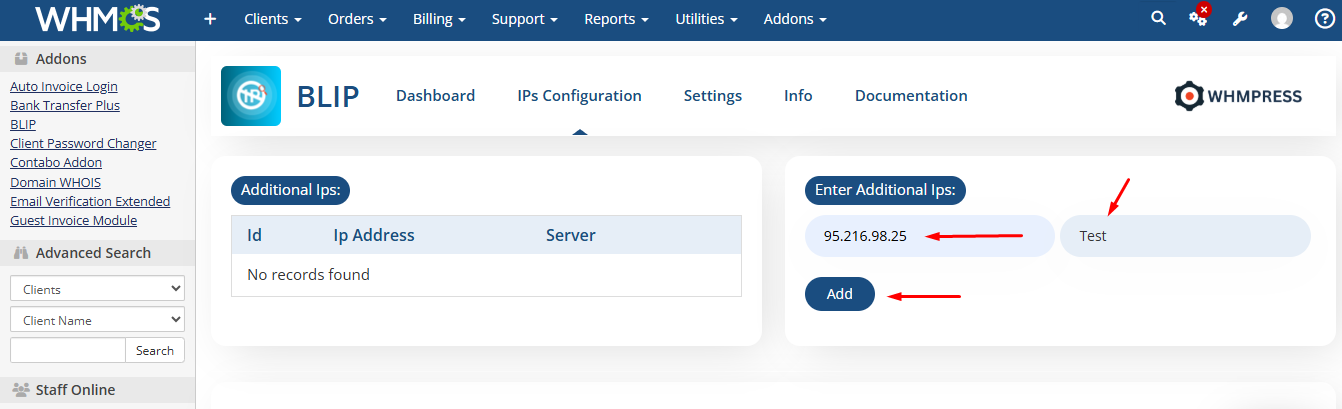
IPS Configuration:

You can add your additional IPs. From there, you can check whether an IP is blocked on any server.
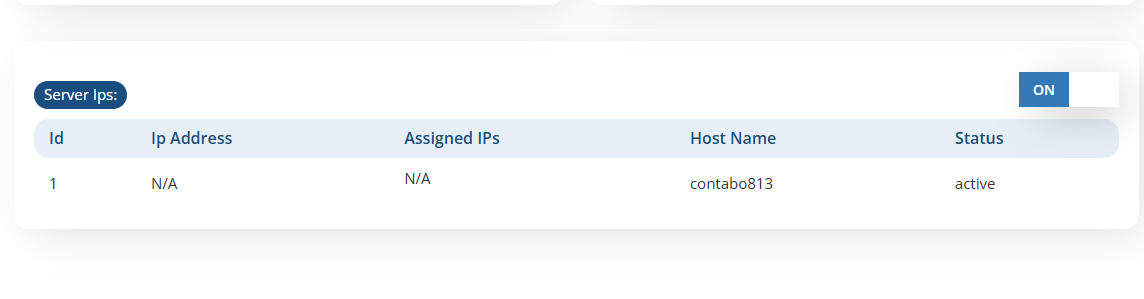
You can also review your server IPs to determine whether an IP is blocked and identify the specific server involved.
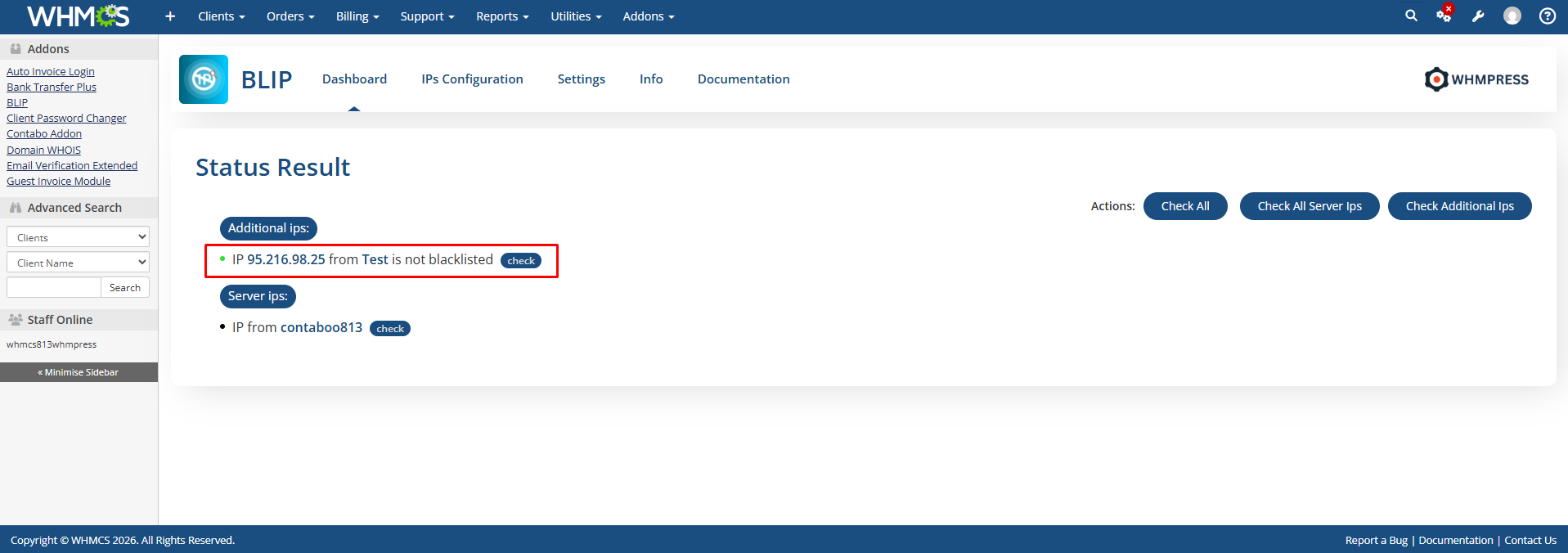
Results:
When you add an additional IP, it will appear on the module’s dashboard. You can then directly check the IP, and the module will display a message indicating whether the IP is blocked on a specific domain (e.g., example.com) or not blocked.
Setting:
Next, navigate to the Settings tab, where you will find an option to check IPs using a cron job
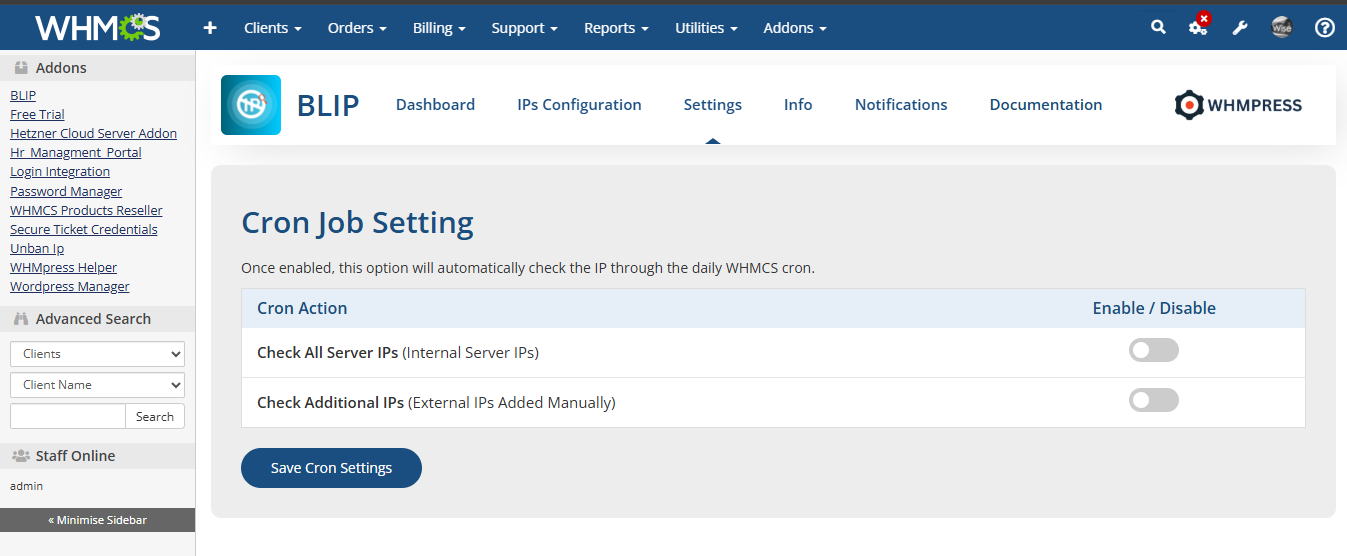
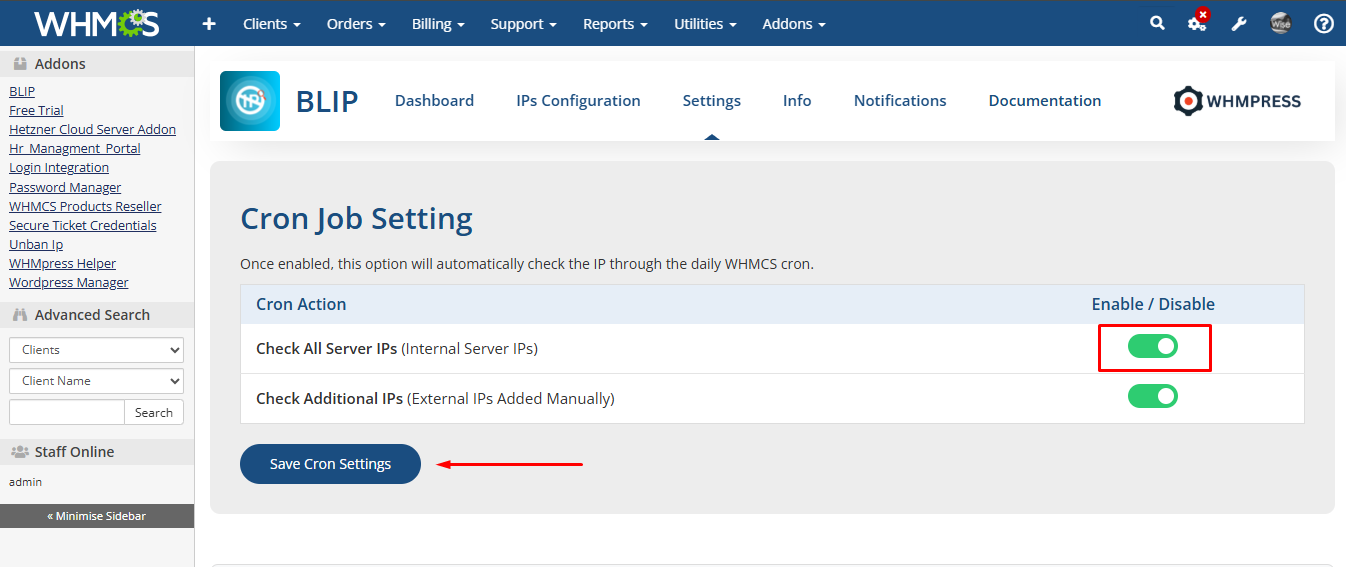
Simply enable the cron job toggle, and the module will automatically check the IPs according to the configured cron schedule.
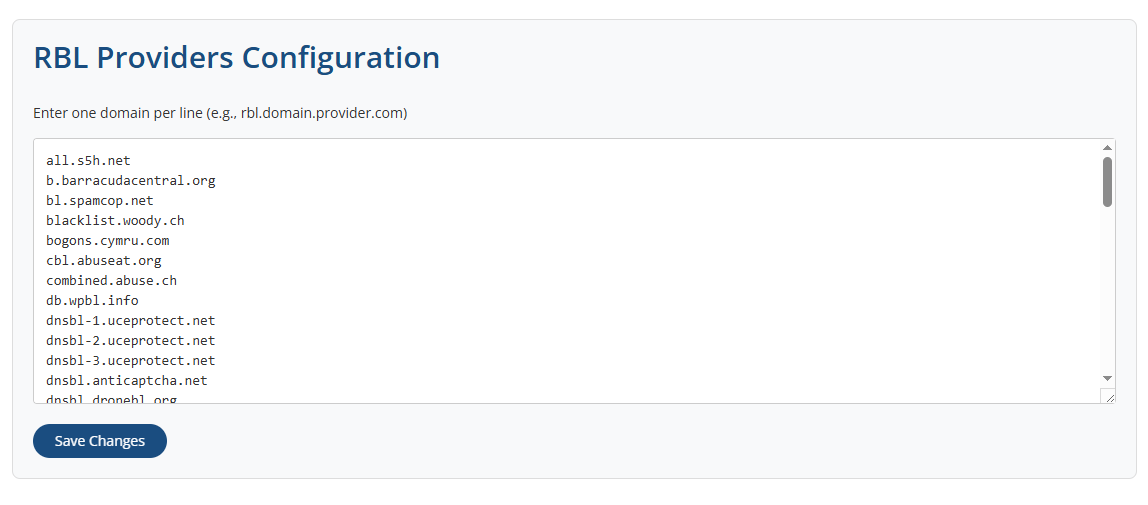
You can also check the RBL Providers Configuration
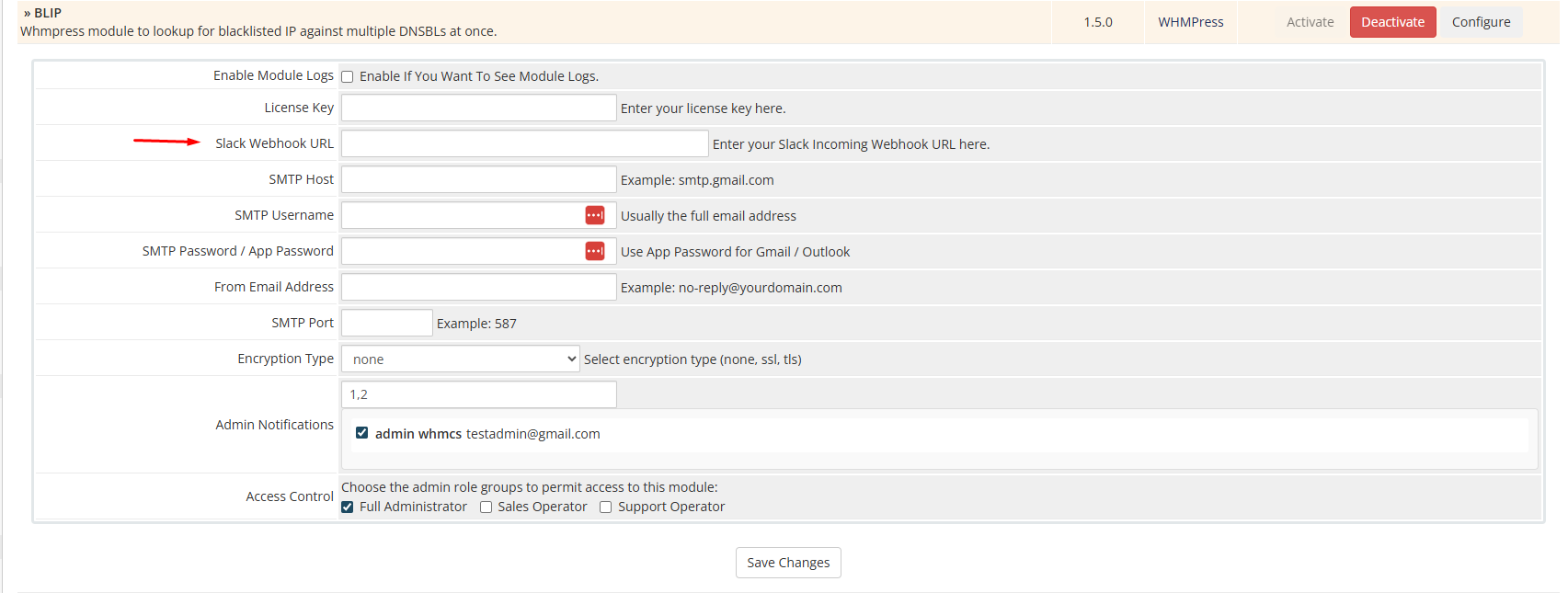
You can also enable notifications within the module and configure alert settings. If any of your IPs are blocked, you can integrate Slack to receive notifications.

You need to configure Slack through the module add-ons page and set up your SMTP settings. Once configured, you will receive alerts via Slack.
Conclusion:
Thank you for reviewing this document. If you have any questions or need further
assistance, please feel free to reach out.
[ WHMPRESS.com ]
[ [email protected] ]